Trucks & Locations
How to add locations
Add a location to a truck by editing it, opening the Locations tab, and setting an effective date and region/location.
Adding a location to a truck
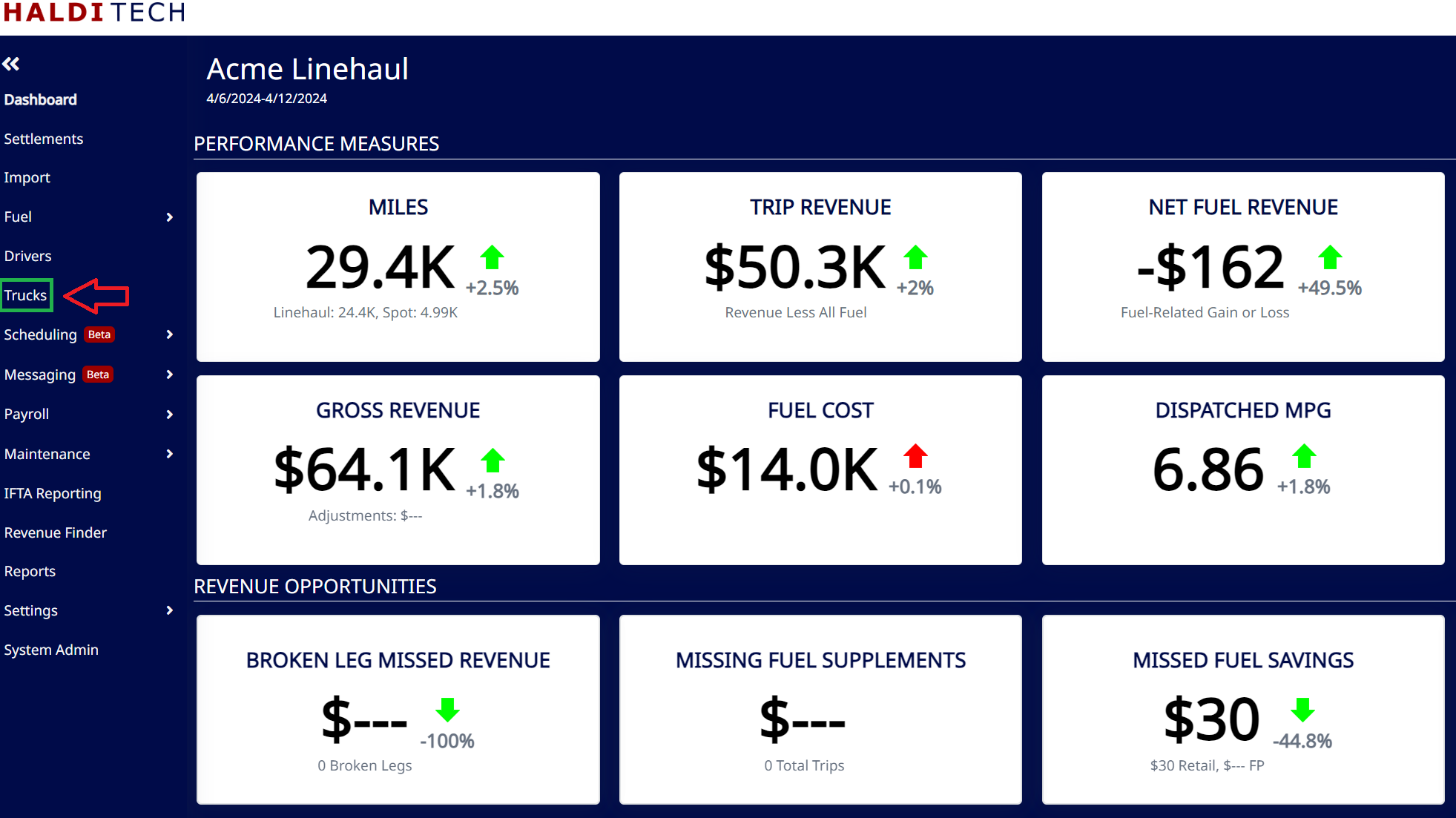
Go to Trucks and open the truck you want to update — double-click it, or select it and click Edit — then click the edit (pencil) icon.
Select the Locations tab. Click Add, choose the Effective date, pick the Region/Location, and click Save.
Note: You need to have your Regions and Locations defined first. See Regions and Location.
Need help?
Email support@halditech.com or call us at (470) 594-2534.