Payroll
How to get Payroll Numbers into Haldi Tech P&L
A short-term workaround for importing weekly gross pay per driver so it flows into the HaldiTech P&L and reports.
Note: This is a short-term workaround while we build direct import of weekly payroll totals per driver.
Step 1. Open the payroll week
Go to Payroll and double-click the payroll week you want to add numbers for.
Step 2. Open the Adjustments tab
Click the Adjustments tab at the top.
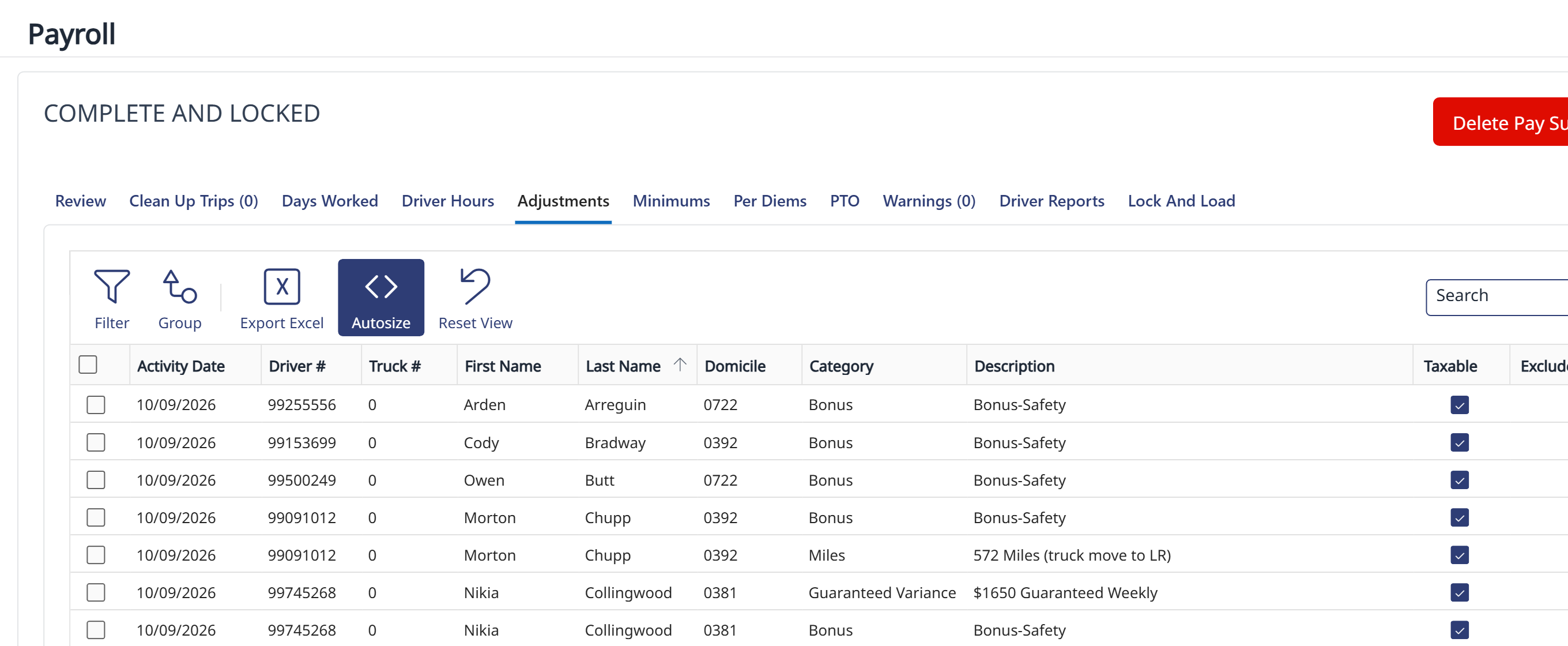
Step 3. Export the pre-filled template
Click Export Excel, choose Pre-Filled Import Template, and click Export. The file has a row for each driver.
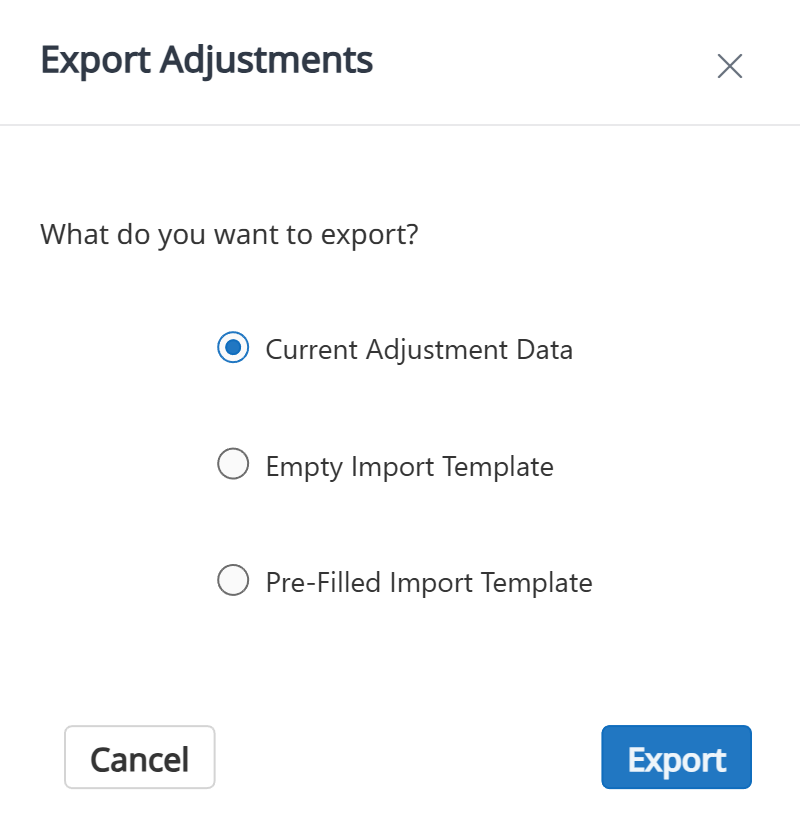
Step 4. Add your payroll numbers and import
Enter each driver's weekly gross pay in the template, save it, and import the completed file back into the Adjustments tab. The totals then flow into the HaldiTech P&L and reports.
Need help?
Email support@halditech.com or call us at (470) 594-2534.