How to set up IVMRs
How to connect your ELD and configure Haldi Tech to auto-generate and send weekly IVMRs.
Please make sure to read all of these instructions carefully.
Important: The odometer values on your old IVMRs may not exactly match your Haldi Tech IVMRs. This means you can't generate Haldi Tech IVMRs and expect them to match your current IVMR provider's exactly. When you are ready to switch, there is one-time work that needs to be done to get your old IVMRs to match your first Haldi Tech ones. Our support team will help you through that process.
Step 1. Connect your ELD
For Motive, click here for instructions.
For Trimble, email us at support@halditech.com and we'll send you Trimble's data sharing agreement. Once you sign and return the DSA, we'll connect your account.
For Omnitracs, reach out to your Solera Account Manager (could be a 3rd party), and tell them you want to integrate with Halditech and need a Data Sharing Agreement. Once you get the DSA from your Solera rep, sign it and return it to them. You may need to follow up with your Account Manager frequently until they let us know it's been set up.
Step 2. Wait until a full IVMR period of data has been received.
It generally takes a full week of being connected to the ELD before there is sufficient data to create IVMRs.
Step 3. Open IVMR Settings and turn on weekly IVMRs.
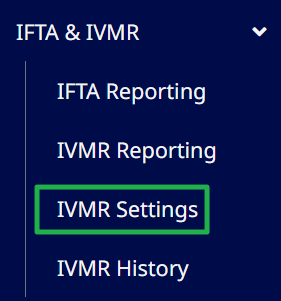
In the left menu, go to IVMR & IFTA > IVMR Settings. Check Create weekly IVMR reports, then set the format options to your preference (for example, check Use HaldiTech Format to use the HaldiTech IVMR layout).
Step 4. Enter your terminal IVMR contacts.
Back on the IVMR Settings page, fill in the Terminal IVMR Contacts — the contact name and email address(es) for each terminal you submit IVMRs to. Separate multiple email addresses with a comma. Add your own address to the Internal IVMR Email field if you want to receive a copy and processing-error notifications.
Note: If you don't see one of your domiciles in the list, it means no truck has that domicile selected.
Step 5. Start using Haldi Tech IVMRs.
Once you've submitted your final IVMRs from your old provider, forward those IVMRs to support@halditech.com, and we'll configure your trucks so the odometers on your first set of HaldiTech IVMRs match exactly for a seamless transition.
Important: If you continue to submit your IVMRs outside of HaldiTech, the odometer values will need to be updated before the first time you use HaldiTech for your IVMRs.
If everything is configured correctly, your IVMRs will auto-generate and send to the terminal every Monday morning around noon. At the end of each quarter, it will send one batch of IVMRs to the terminal up to the last day of the month. The next set will begin on the first day of the new month or quarter.
If there are any issues with IVMRs or you need help configuring your account, email support@halditech.com.
Need help?
Email support@halditech.com or call us at (470) 594-2534.