REL Fuel Monitor
Open and use the REL Fuel Monitor to view REL fuel transactions, customize columns and grouping, filter alerts, and adjust alert/warning settings.
Getting started
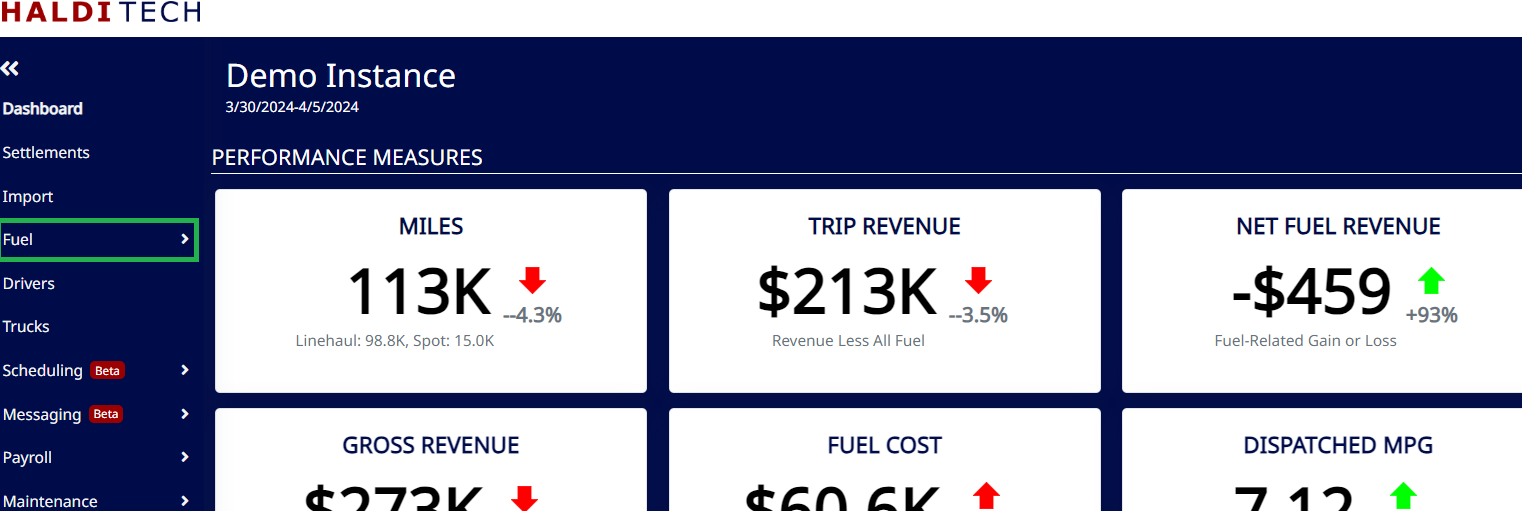
On your HaldiTech dashboard, click on the Fuel drop-down on the left-hand side of the page.
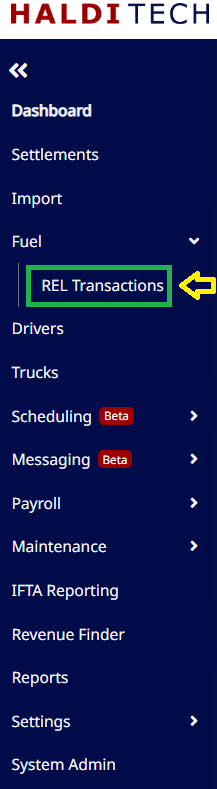
Click on the REL Transactions tab. This will take you to the Fuel Monitor.
Your REL Fuel Monitor will appear similar to the below:

Customization
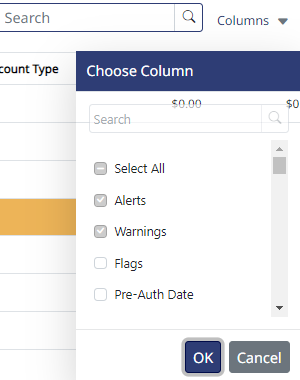
You may add or remove the columns that are relevant to you by clicking the Columns drop-down.
You may customize your viewing experience by clicking the Group icon. This lets you group columns together by dragging and dropping.

To return to the original view, click Reset View.
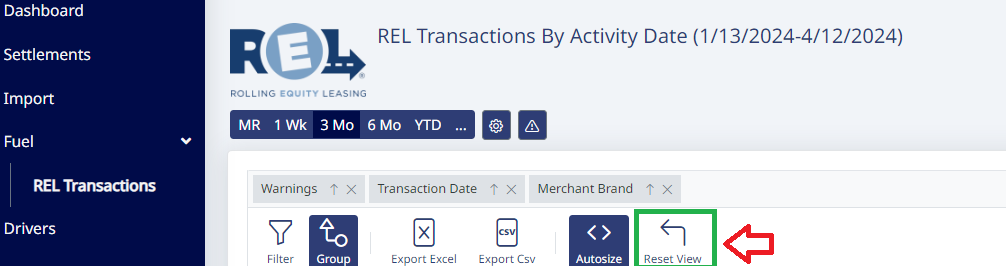
To view warnings/alerts only, click on the icon shown in the screenshot below. To return to the previous view, simply click on the warning/alert icon again.
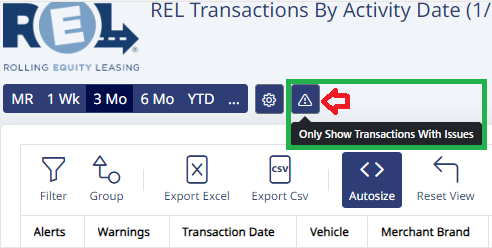
Note: When you first activate your REL Fuel Monitor, you will be able to go back 7 days from your most recent fuel file. As time accrues, you will eventually be able to view 3 to 6+ months of fuel transactions.

Settings
To change your settings for alert/warning parameters, click the gear icon shown below:
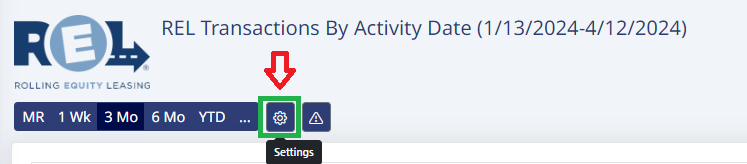
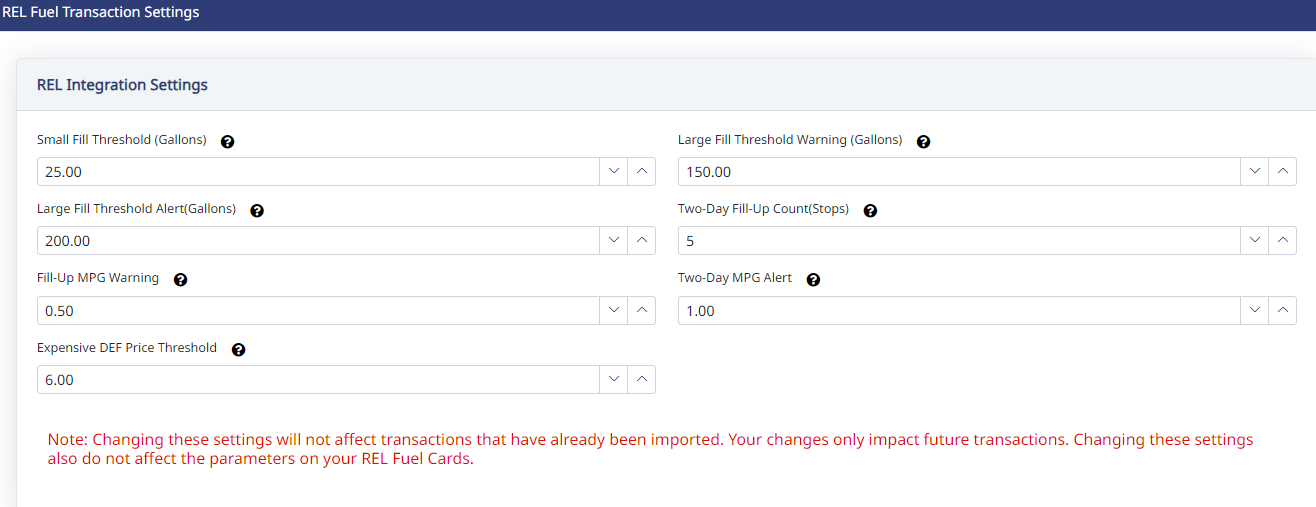
The REL integrations setting can be adjusted to reflect what is relevant to your business.
Note: Changes will not take effect until your next fuel settlement is uploaded the next day.
Need help?
Email support@halditech.com or call us at (470) 594-2534.