Reporting
Revenue Finder - Use filter to only see open items.
Filter the Revenue Finder Status column to hide closed issues and show only open items.
Using the Revenue Finder Filter
Remove closed issues from your view so you only see open ones.
Step 1. Turn on the column filters
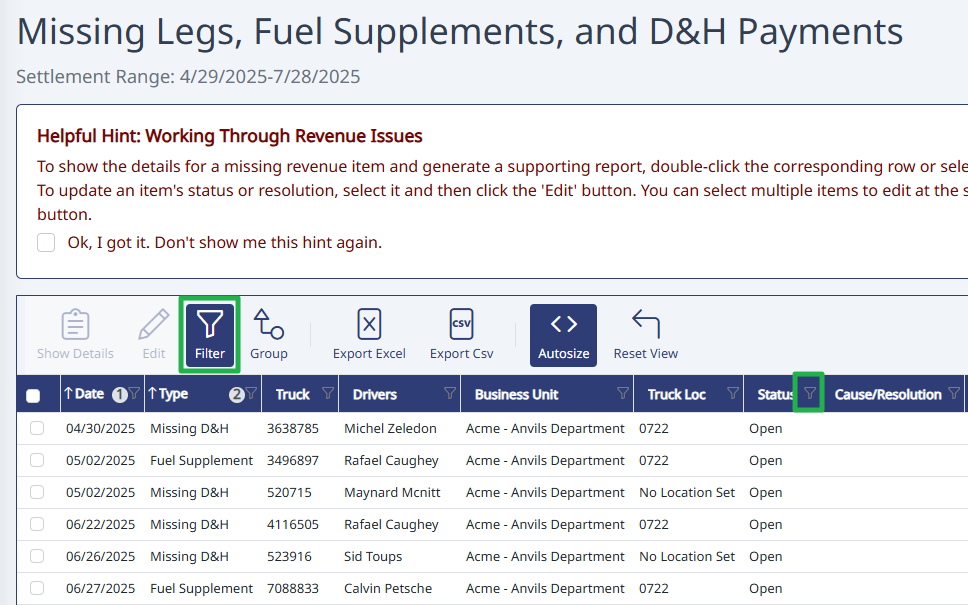
In Revenue Finder > Revenue Issues, click the Filter button in the toolbar. A small filter icon appears next to each column header. (If you don't see the icons, click Filter once more.)
Step 2. Filter out the Closed status
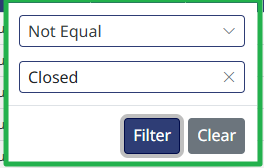
Click the filter icon next to the Status column. In the box that pops up, choose Not Equal from the dropdown, type Closed in the value box, and click Filter.
Need Help? support@halditech.com or call us at 470-594-2534
Need help?
Email support@halditech.com or call us at (470) 594-2534.