What's New in HaLDi
Fall 2026 release for office users — a dashboard you can arrange, list/card/calendar views, Motive safety events, a new sign-in page, and a lot of speed-ups.
For office users · Fall 2026 release · updated October 2026
This release brings a dashboard you can arrange yourself, card and calendar views on your lists, Motive safety events with alerts, coaching and bonuses, a new sign-in page, and a lot of speed-ups. Here is what changed and how to use it.
The screenshots use a made-up company, Northwind Freight, so the names and numbers are not real.
In this release
- A new dashboard you can customize, opening with four breakdown charts: miles, trip revenue, net fuel and payroll.
- List, cards or calendar on most list pages. Time-Off Requests and the Defect Workflow now have a calendar.
- Motive safety events (Enterprise): events, video, coaching emails to drivers, point weights, email alerts and safety bonuses.
- A new sign-in page where you can switch to the new login experience.
- Settlement import progress you can watch, step by step.
- Broken legs graded by confidence in the Revenue Finder.
- Faster Hours of Service, settlement imports, dashboard and driver app.
A dashboard you can make your own
Your home page is now a dashboard of widgets. Each one shows the selected week, how it compares with the week before, and a trend.
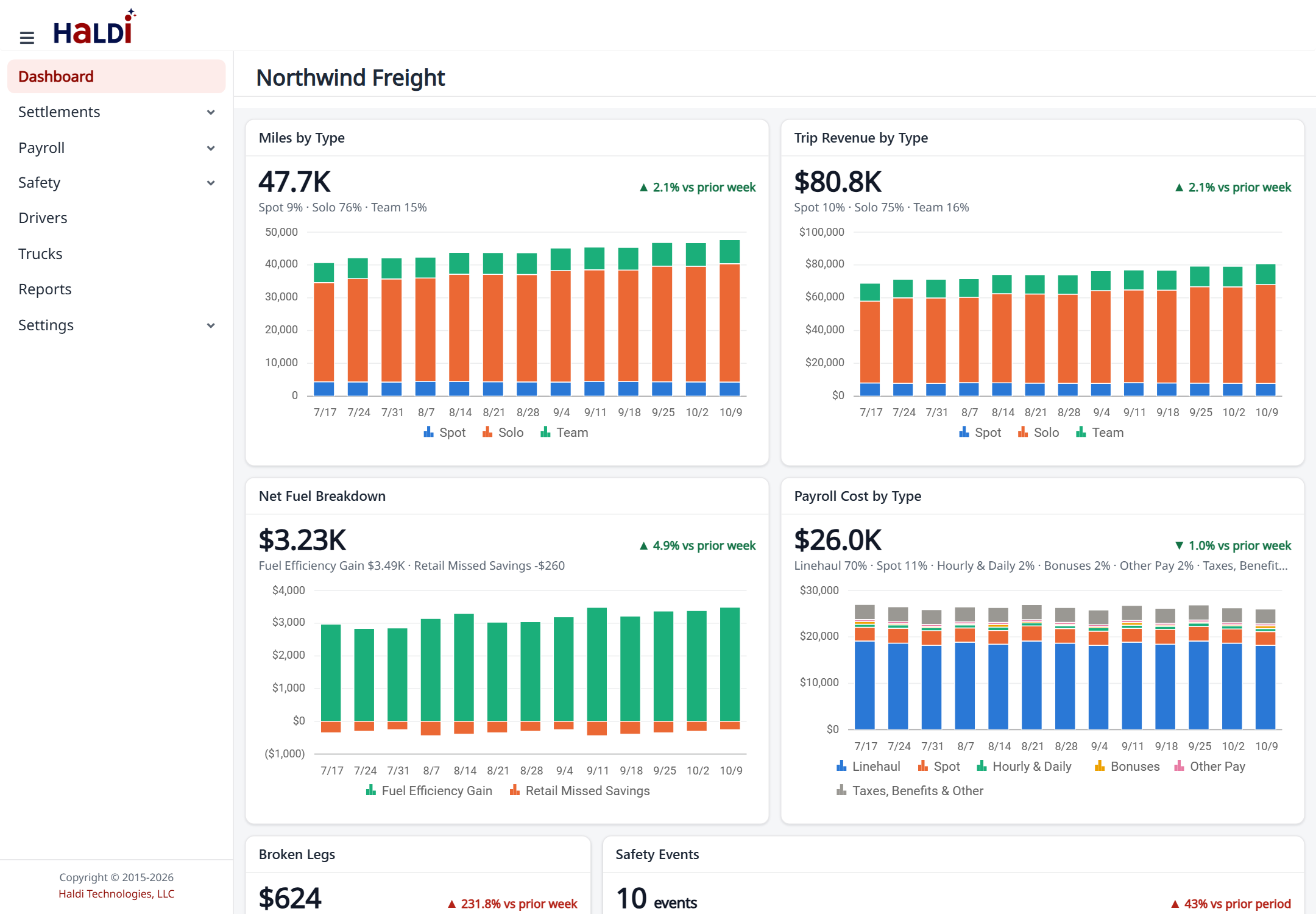 The new dashboard
The first time you open it, four charts sit at the top, two to a row. Each bar is a settlement week, split into its parts:
- Miles by Type and Trip Revenue by Type: spot, solo and team.
- Net Fuel Breakdown: your net fuel revenue split into Fuel Efficiency Gain and Retail Missed Savings. Missed savings, the extra you paid by buying fuel at retail, usually shows as a small bar below zero.
- Payroll Cost by Type: linehaul, spot, hourly & daily, bonuses and other pay, plus taxes, benefits & other payroll costs. It needs the Edit Payroll permission.
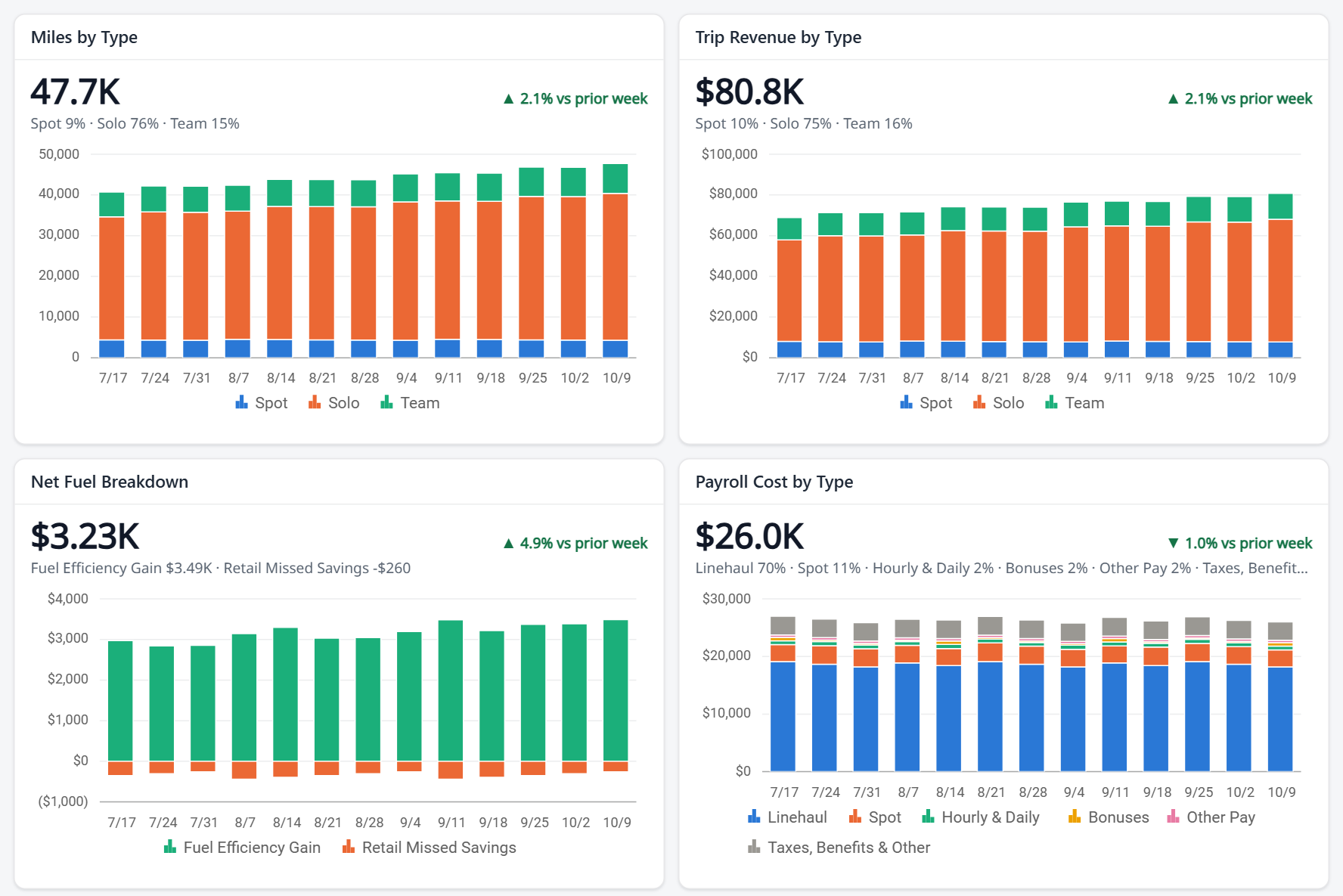 The four charts the dashboard opens with
- Trend: pick 13, 26 or 52 weeks at the top of the dashboard.
- Customize: click the gear (Customize dashboard). Drag a widget by its title, resize it from the bottom-right corner, remove it with ✕, or click Add widget. Reset to default puts everything back. Your layout is saved.
- Already arranged your dashboard? Your layout is kept and the new charts are added at the bottom. The single-number Miles, Trip Revenue, Net Fuel Revenue and Payroll Cost widgets are still under Add widget.
- Widgets include the four charts above, Miles, Trip Revenue, Net Fuel Revenue, Payroll Cost, Gross Revenue, Fuel Cost, MPG and PPG, Broken Legs, Fuel Supplement, Missed Fuel Savings, Missed Drop & Hook, CDL / Med Card / Inspection Expirations, Critical Maintenance, New Drivers / Trucks / Destinations, and, with Motive safety, Safety Events, Safety Points and Safety vs Trip Revenue.
- New schedule widgets (Professional and up; find them under Add widget → Schedule): Time Off Requests for the next 60 days, pending first; Unconfirmed Trips that drivers haven't confirmed in the next 48 hours; and Today's Schedule, grouped by terminal.
- Safety vs Trip Revenue: your safest, highest-earning drivers sit at the top right. On a phone or tablet, tap a dot to see who it is.
- Click through: the lists in a widget link straight to the driver, truck or settlement.
- On a phone the widgets stack in a single column.
List, cards or calendar
Most list pages now have a List | Cards switch at the top right: Settlements, Payroll, Hours of Service, Drivers, Trucks, Destinations, Schedules, Messages, Time-Off Requests, Maintenance and more. The page remembers your choice, and phones always show cards.
Cards are color-coded so what needs attention stands out:
- Drivers: red when a CDL or med card has expired, amber when one is expiring soon, green when both are current.
- Trucks: colored by maintenance: overdue, due soon, or up to date.
- Defect Workflow: colored by status: red for Defect, yellow for Out-For-Estimates and Scheduled, green for In-Work. The status selector at the top works for both the list and the cards.
- Hours of Service: colored by average working hours per week.
- Payroll: not started, in progress, or complete, with locked totals.
Click a card to open it. On driver and truck cards, the pencil at the top right opens the quick edit window.
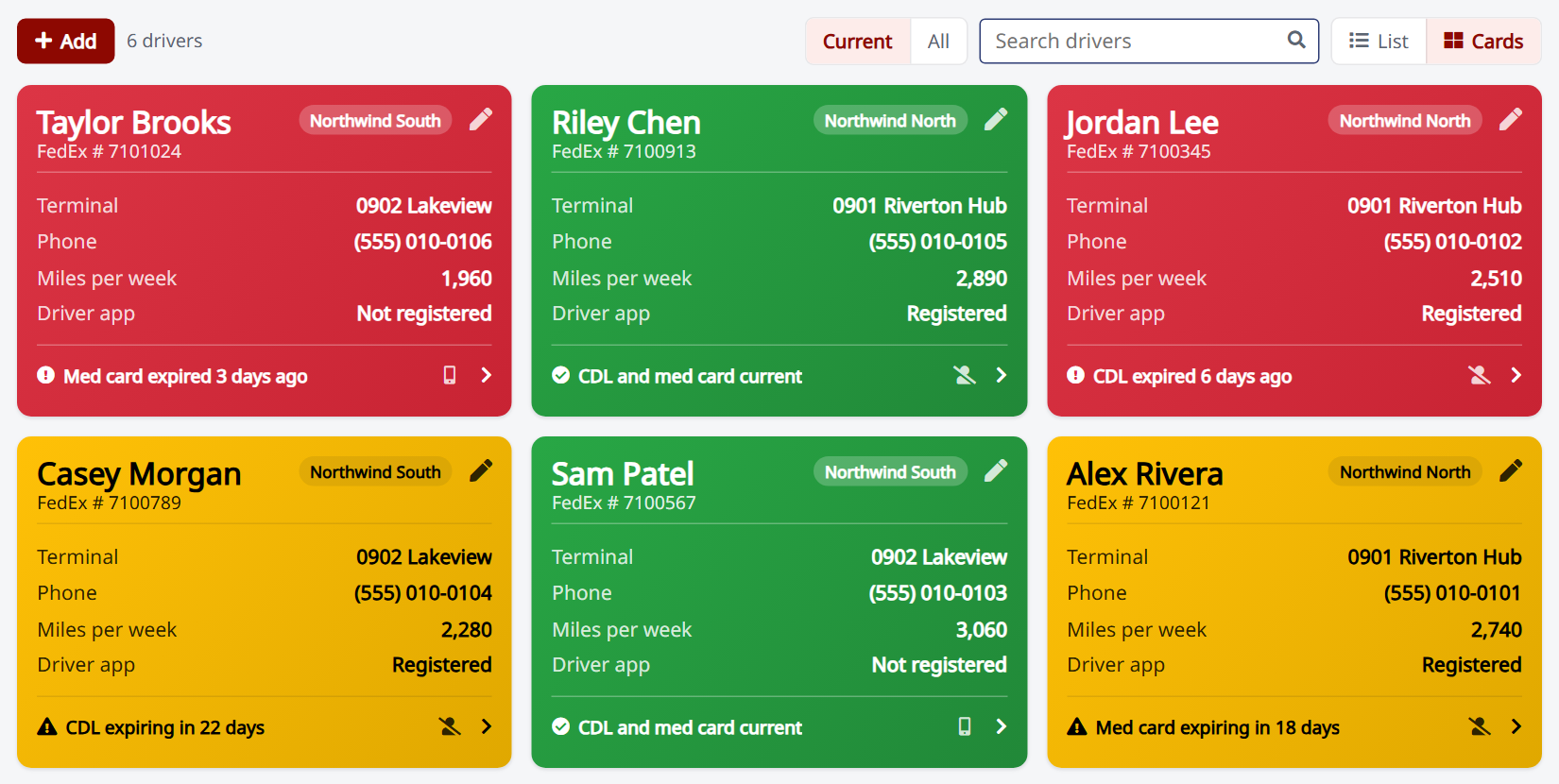 Drivers as cards: expired and expiring documents stand out
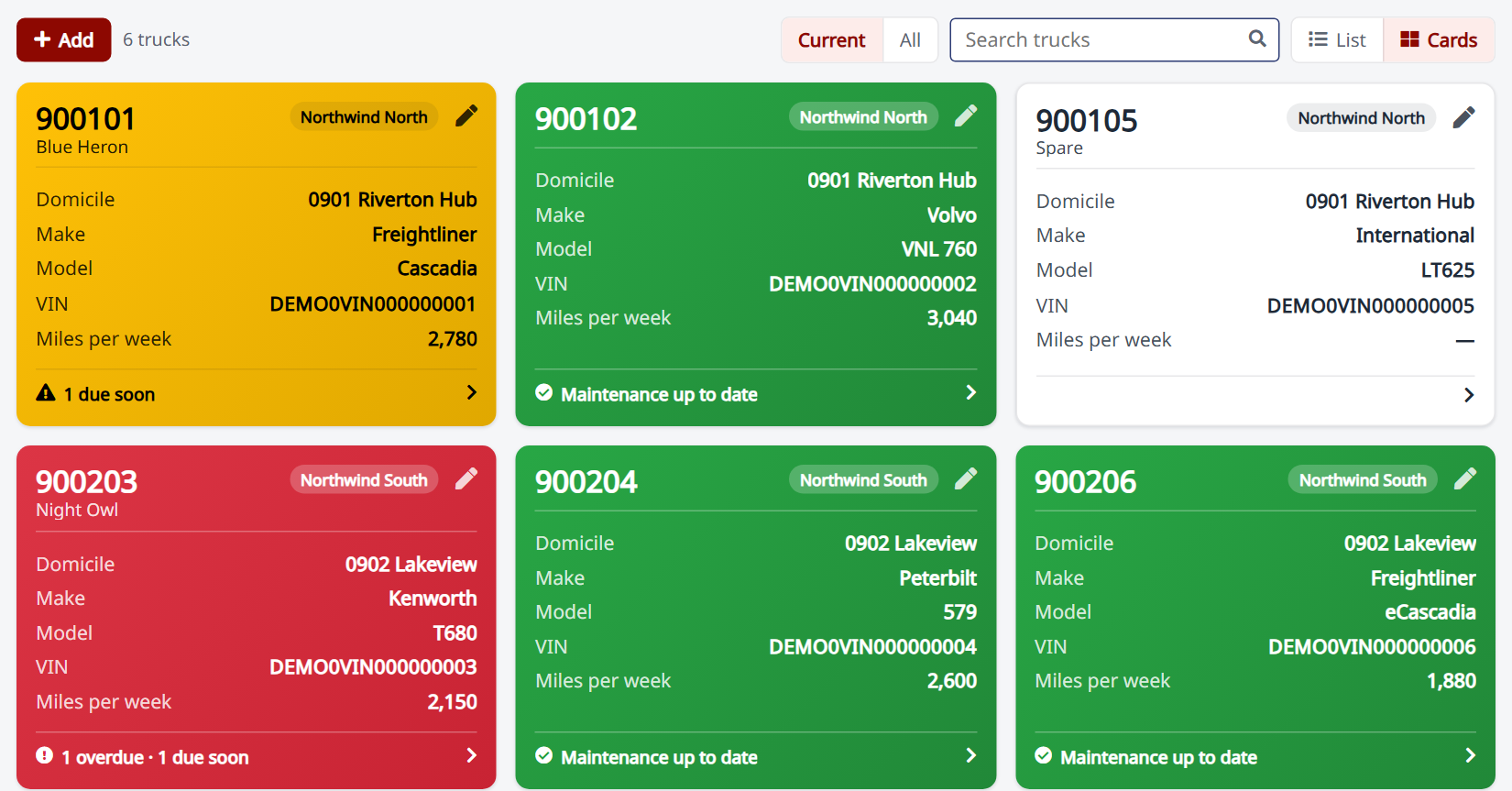 Trucks as cards, colored by maintenance
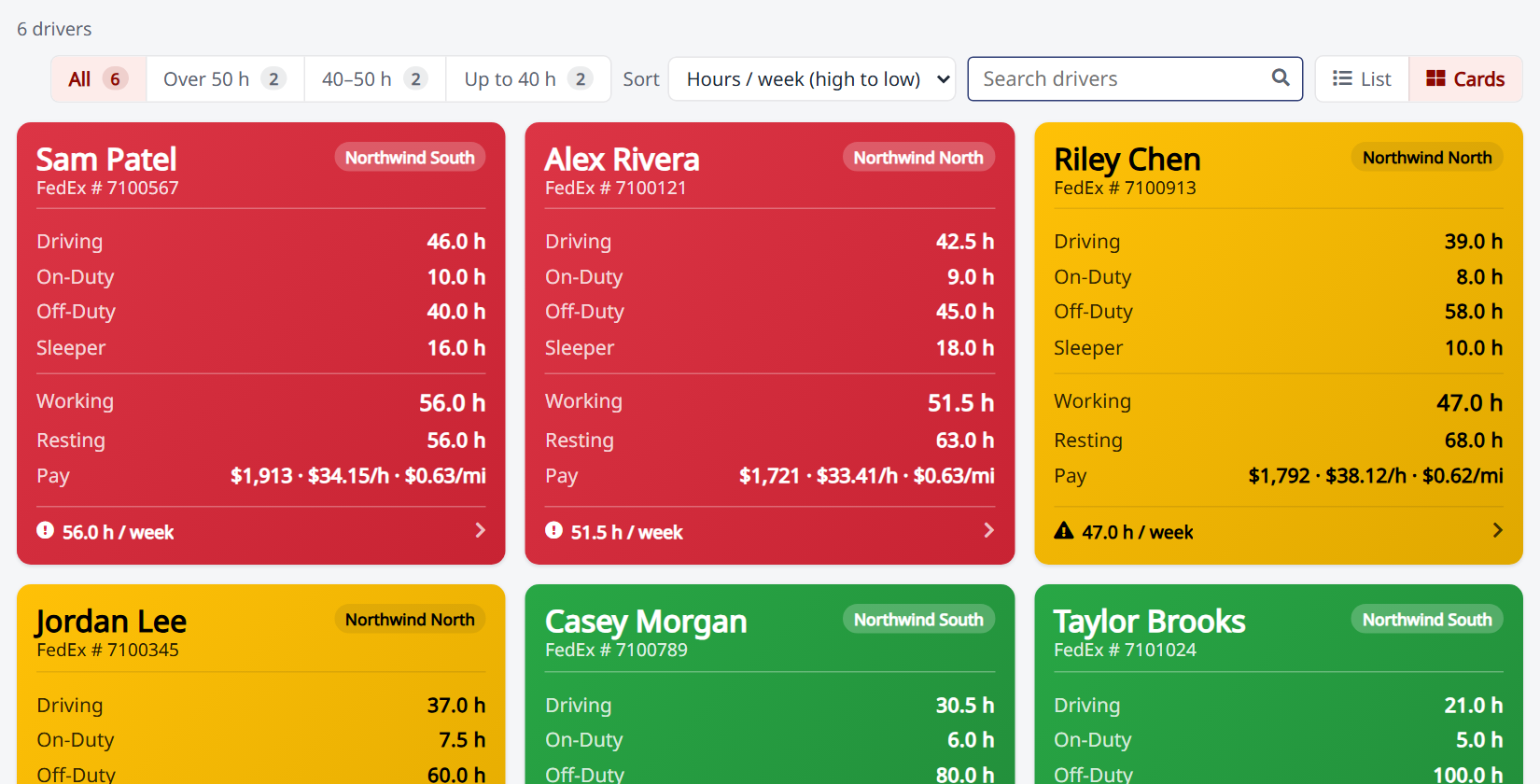 Hours of Service as cards
Calendars for time off and maintenance
Time-Off Requests and the Defect Workflow have a third view: Calendar. It opens on the current month; switch to Week or Agenda at the top right.
- Time off: each request spans its days off, colored by status: pending yellow, approved green, denied red, canceled grayed out. The legend shows how many of each.
- Defect Workflow: each visit runs from the day the truck went out of service to the day service was completed, colored like its card. Use the status buttons at the top to choose which visits show; it starts with Scheduled, In-Work and Closed.
- Click a request or visit to open it. Double-click a day to add a time-off request, or to schedule a visit, starting that day.
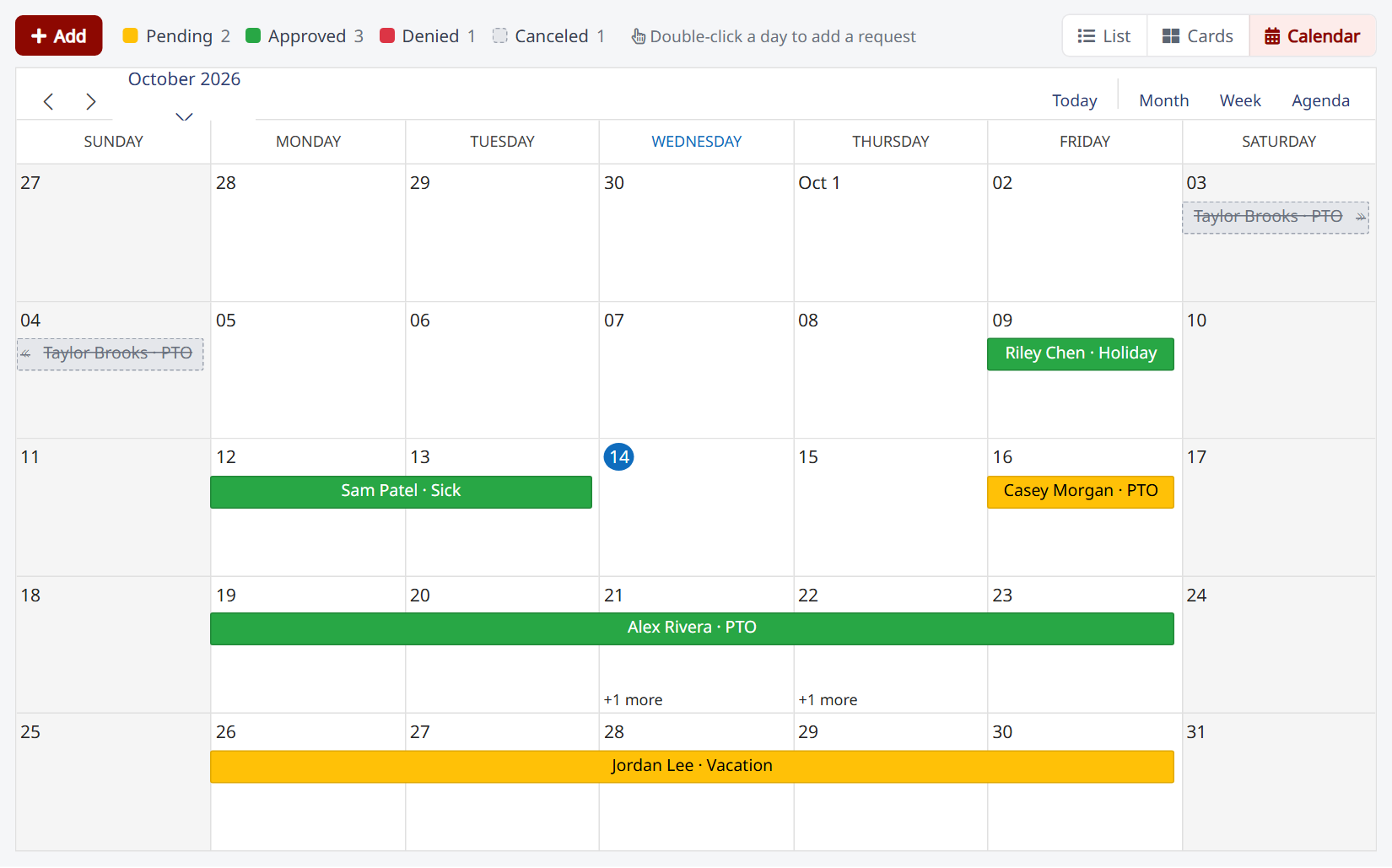 Time-Off Requests → Calendar
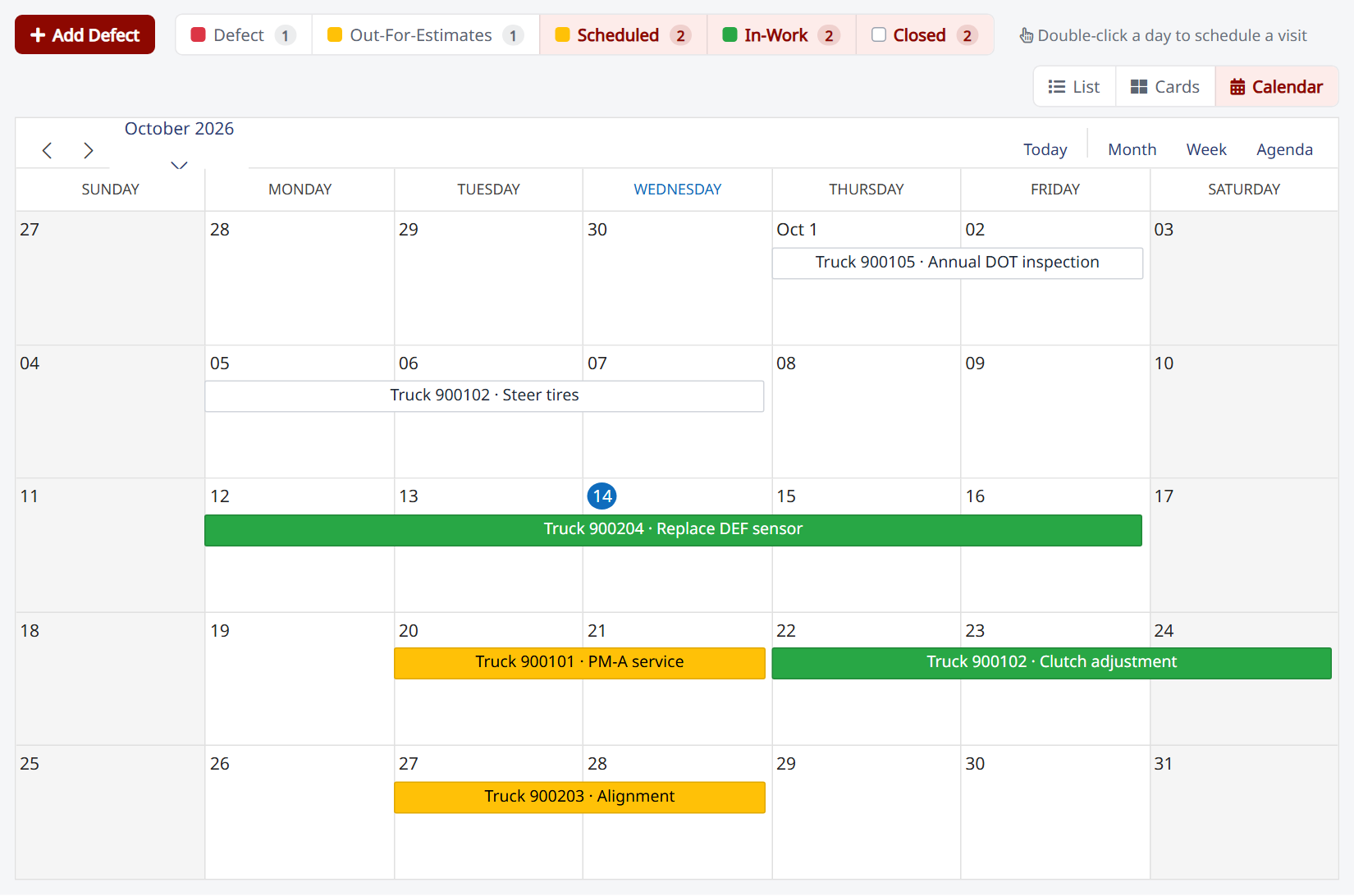 Defect Workflow → Calendar
Motive safety events
If you use Motive, HaLDi now brings in your drivers' safety events (hard braking, speeding, phone use, stop signs, seat belts and more), matches them to your drivers and trucks, scores them, emails you when a rule is crossed, and can pay safety bonuses. Safety events are part of the Enterprise subscription.
Set it up (once for each business unit)
Your current Motive connection doesn't include permission to read safety events, so you'll need to re-authorize HaLDi with Motive once, then turn safety events on.
Before you start
- Have your Motive Fleet Admin login handy. Motive will ask you to sign in and approve access.
- In HaLDi you need access to Account Settings.
- Anyone who should see the Safety pages needs the Manage Safety Events permission. An admin can add it on the Users page.
Step 1 — re-authorize with Motive
- Go to Settings → Account Settings and open the Integrations tab.
- In GoMotive Integration, find the business unit and click Re-Authorize. (If it has never been connected, the button says Authorize Connection.)
- A GoMotive Authorization message explains that Motive will open in another browser window. Click OK.
- In the Motive window, sign in with your Fleet Admin login. Review the access HaLDi is asking for, which now includes safety events, and approve it.
- When Motive is done, close that window and come back to the HaLDi tab.
Step 2 — turn on safety events
- Back on the Integrations tab, click Enable Safety Events for that business unit.
- Repeat both steps for your other business units.
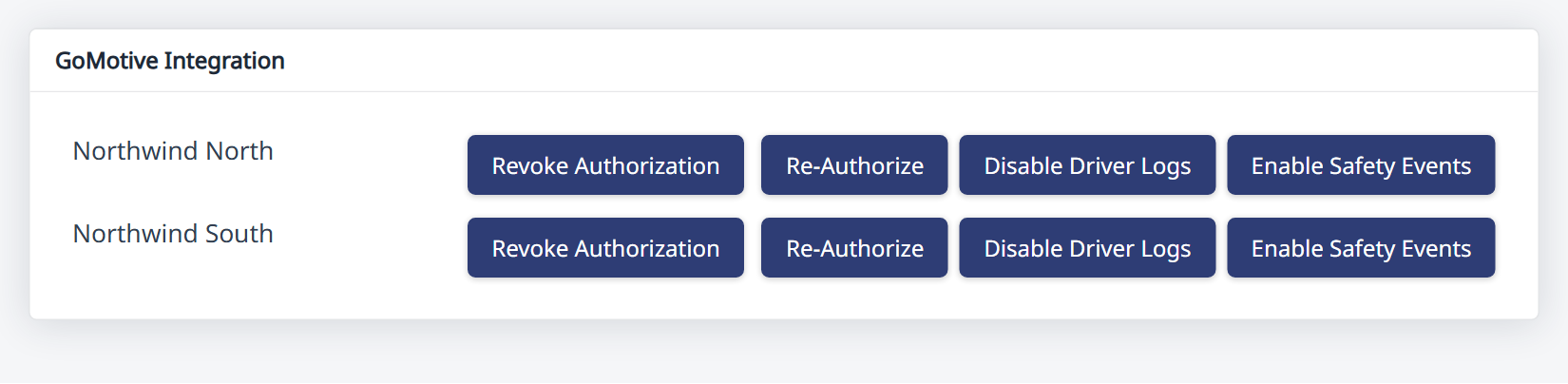 Account Settings → Integrations: Re-Authorize, then Enable Safety Events
That's it. The first import brings in the last three months of events. After that, new events arrive every four hours.
Good to know
- Until a business unit is re-authorized, its safety events can't be imported, and HaLDi will remind you to re-authorize.
- Re-authorizing doesn't change anything else: your trucks, positions and driver logs keep coming in as before.
- To stop importing safety events, click Disable Safety Events.
Review and coach events
Open Safety → Safety Events. Use the Open / Coached / Dismissed / All tabs, filter by type, severity, driver, truck or business unit, or search. Open an event to see where and how fast, Watch Video from Motive's cameras (the video link lasts 10 minutes; just click again), and record coaching: set the status and notes, then Save Coaching.
- Needs Review is where every new event starts; then Needs Coaching, Coached, or Dismissed.
- Dismissed events are taken out of the safety score and the dashboard, the same as in Motive.
- Your coaching notes show in a column on the list, and as a one-line preview on each card.
- There is also a phone-friendly version, and alert emails link straight to it.
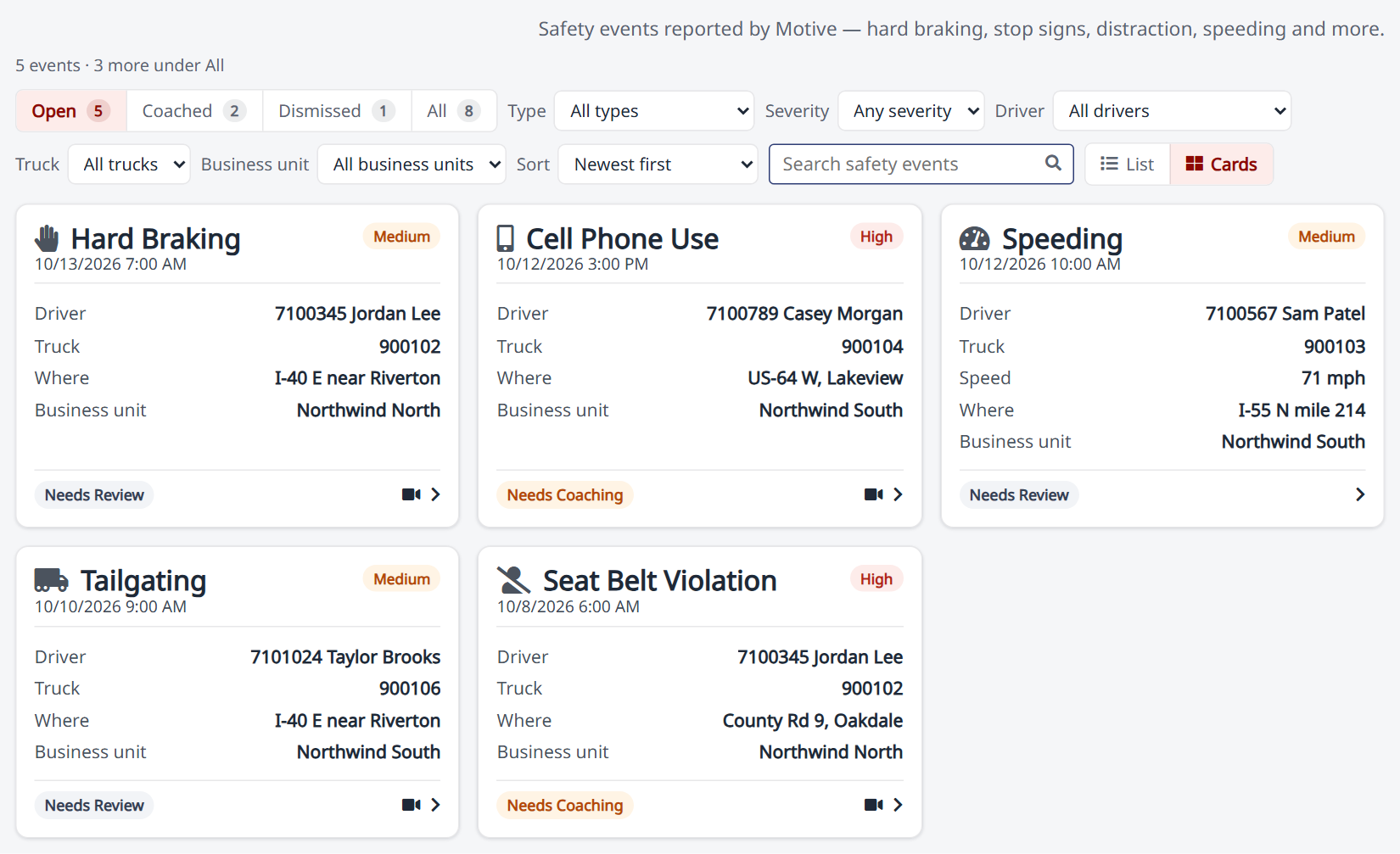 Safety → Safety Events
Coach by email: Send to Driver
On a safety event, write your coaching notes and click Send to Driver. HaLDi emails the driver the event (type, when, where, speed), your notes, and the coaching document for that kind of event, if you've added one.
- The email also goes to any extra addresses on the driver's rate card.
- You're copied, and the driver's reply comes back to you.
- To copy someone else on every coaching email, such as a safety manager, add them under Settings → Message Settings → Driver Safety → Send Copies of Coaching To (set for each business unit).
- The event is marked Coached, with who coached it and when, and the email is saved with the driver's messages.
Weigh what matters: points and coaching documents
Under Safety → Safety Settings → Weights, give each kind of event a number of points (1 unless you change it). A phone-use event can count for more than a hard corner. Points drive the dashboard's Safety Points, alert rules, and bonuses.
Each kind of event can also have a coaching document, such as your phone policy as a PDF. Click Upload on its row. Send to Driver attaches it automatically; use Replace or ✕ to change or remove it.
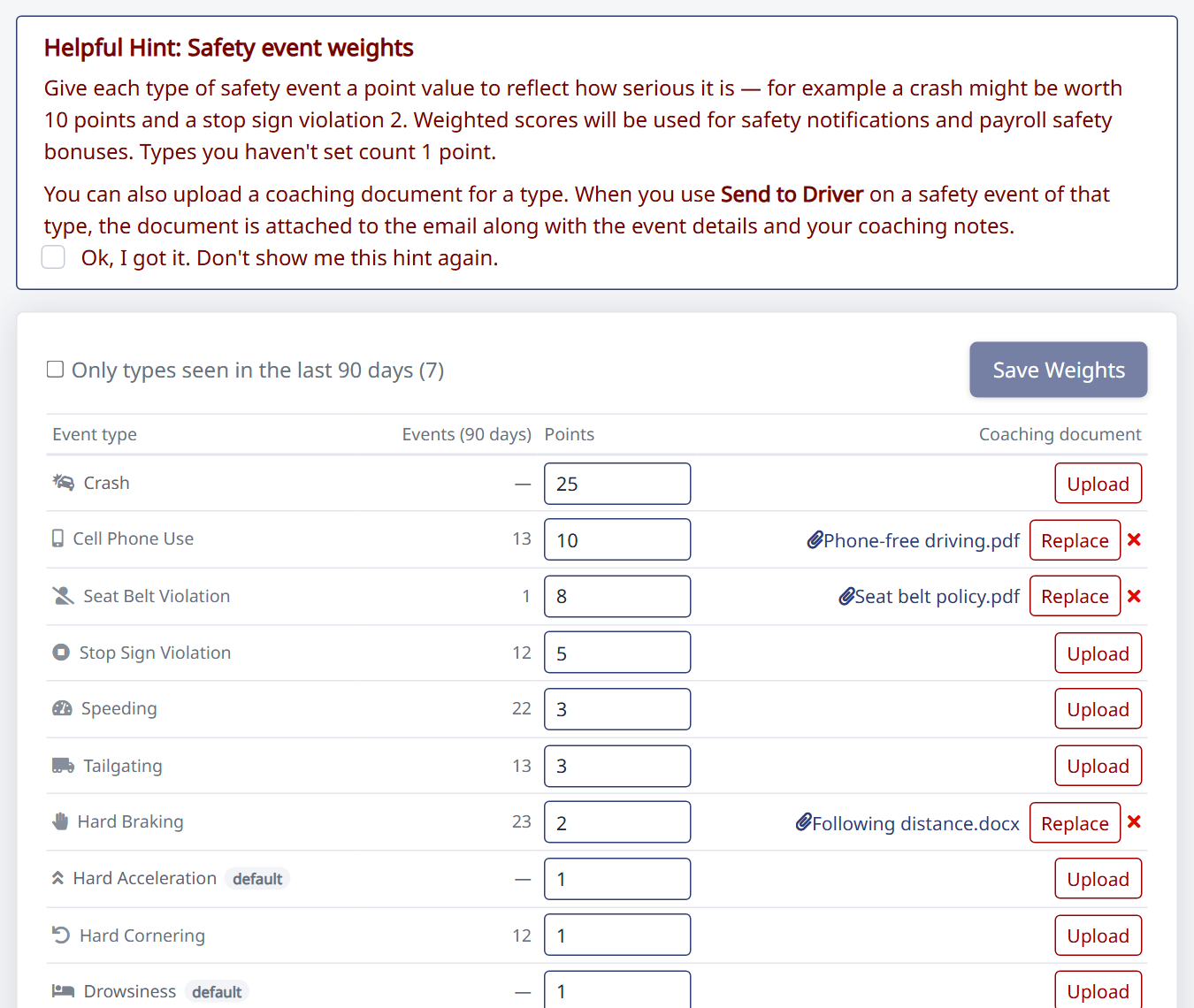 Safety Settings → Weights, with coaching documents
Get emailed when it matters: alerts
On the Notifications tab, list who should get alerts (separate addresses with commas or semicolons), then add rules. For example: "a driver has more than 15 points within 1 day", or "any crash". The same list is under Settings → Message Settings → Driver Safety → Send Safety Alerts To, so you can keep it next to your other message settings.
- Choose which event types count, and which coaching statuses count. By default every status except Dismissed; check Dismissed if those should still count for this rule.
- The email names the driver, gives their phone number, and links to each event.
- Rules are checked whenever new events arrive. A driver isn't alerted twice for the same rule until its time window has passed, and events more than a day old (such as the first three-month import) never send alerts.
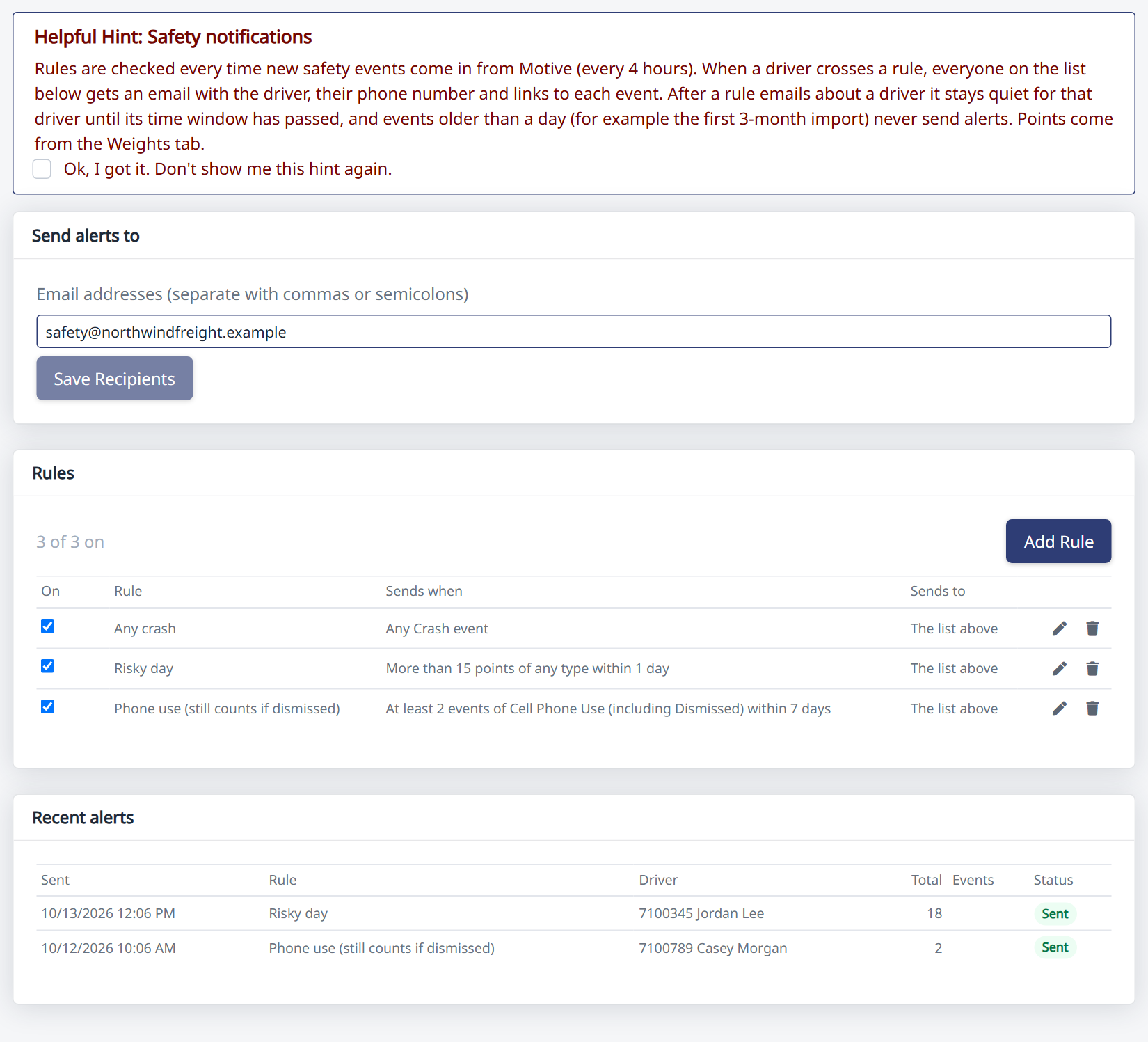 Safety Settings → Notifications
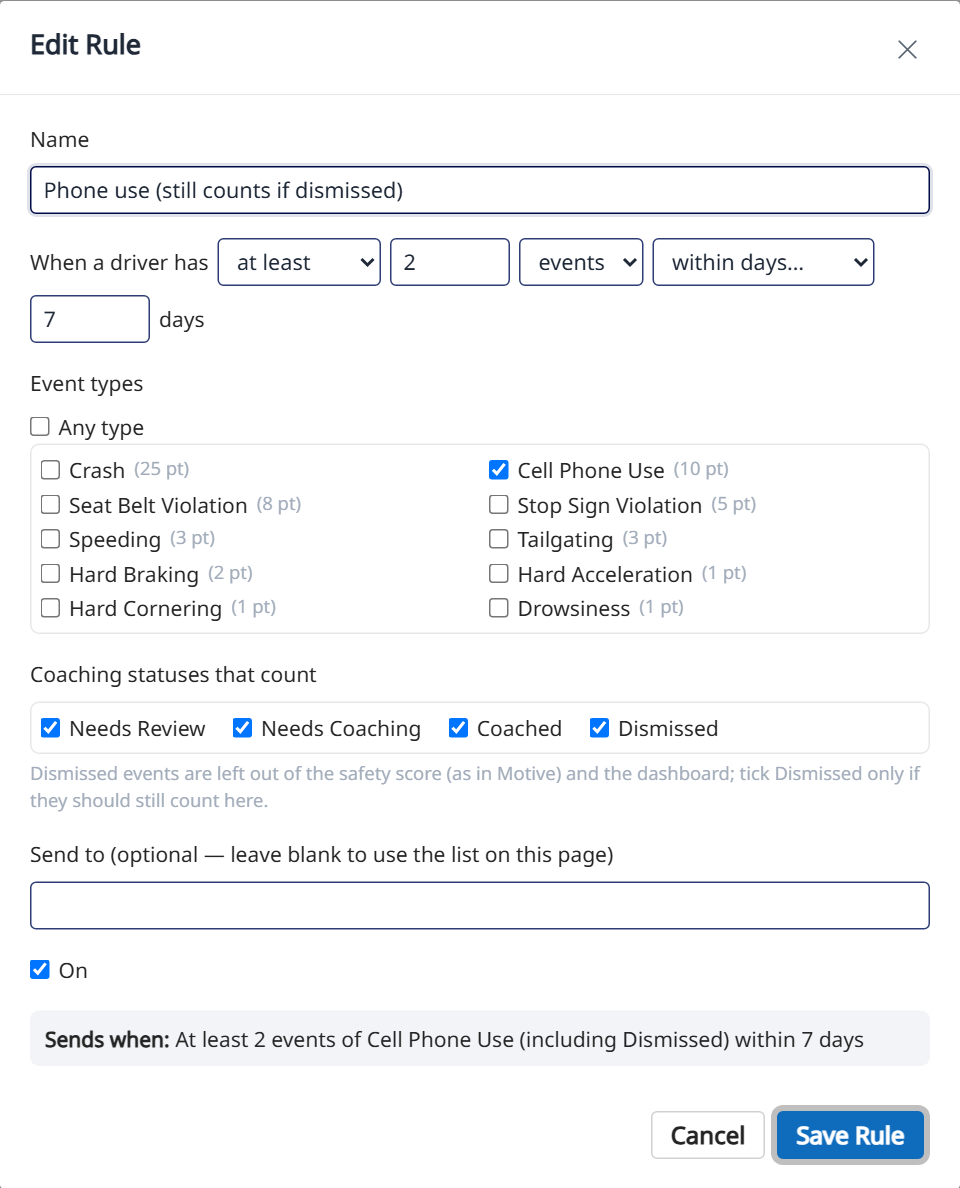 A rule, with the new "Coaching statuses that count"
Reward safe driving: bonuses
On the Bonuses tab, add triggers such as "at most 0 points in a week" or "fewer than 1 crash in a quarter". Then give each driver a rate on Drivers → (driver) → Safety Bonus Rates: a flat amount, per mile, or a percentage of trip revenue.
- Bonuses are worked out when you start a payroll and added as a Safety adjustment. Weekly triggers are checked every payroll; monthly, quarterly and yearly ones in the pay week that contains the period's last day.
- A driver earns a bonus only if they have a rate for it, drove paid miles in the period, and were hired before it started.
- Each trigger can be left out of weekly minimum pay.
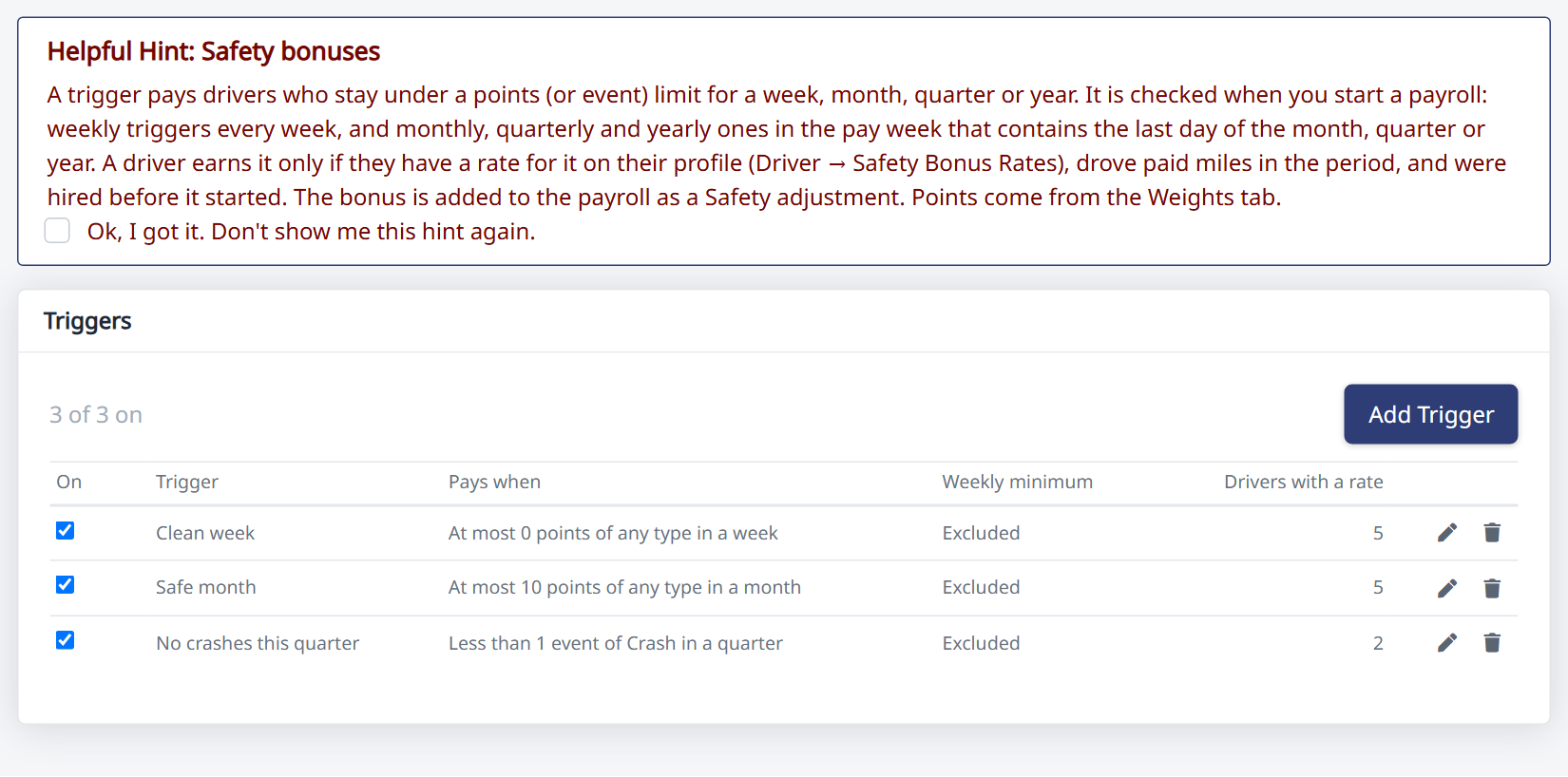 Safety Settings → Bonuses
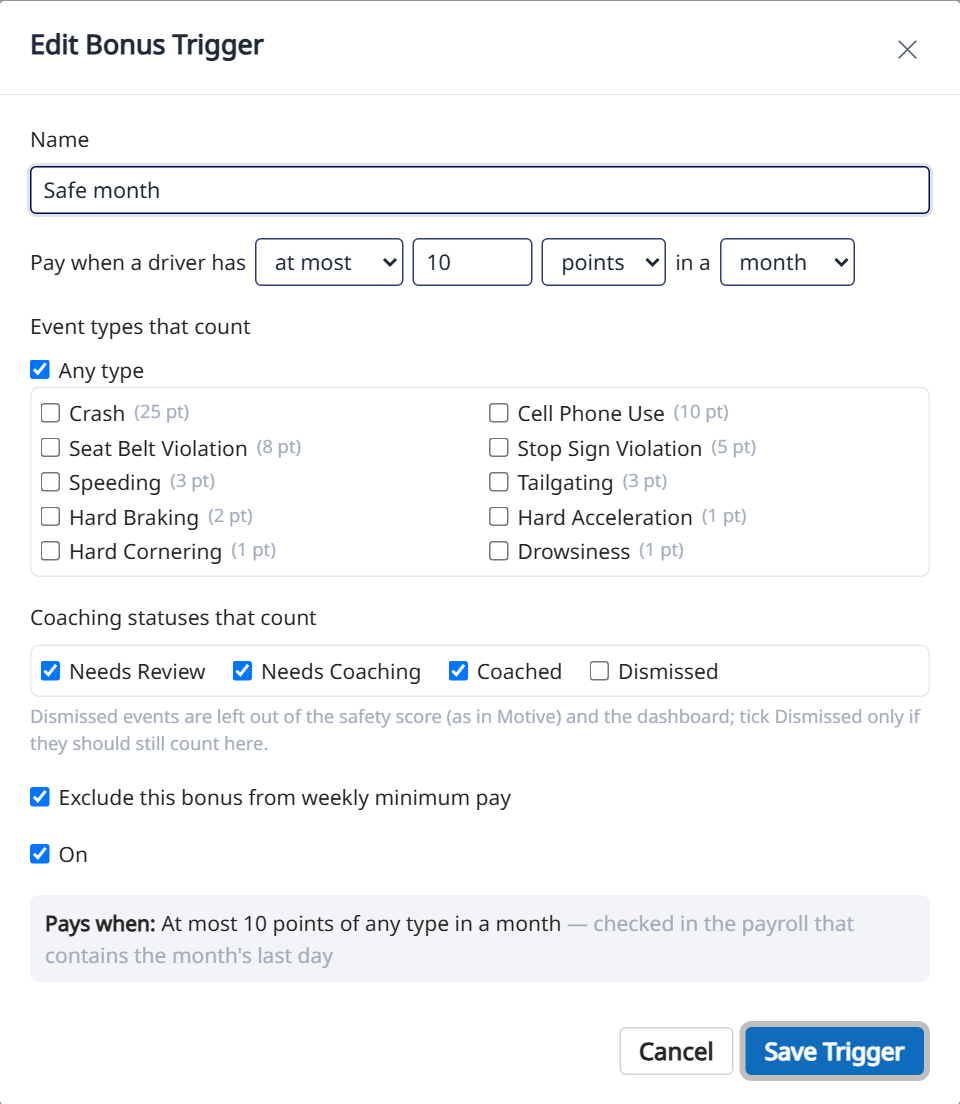 A bonus trigger
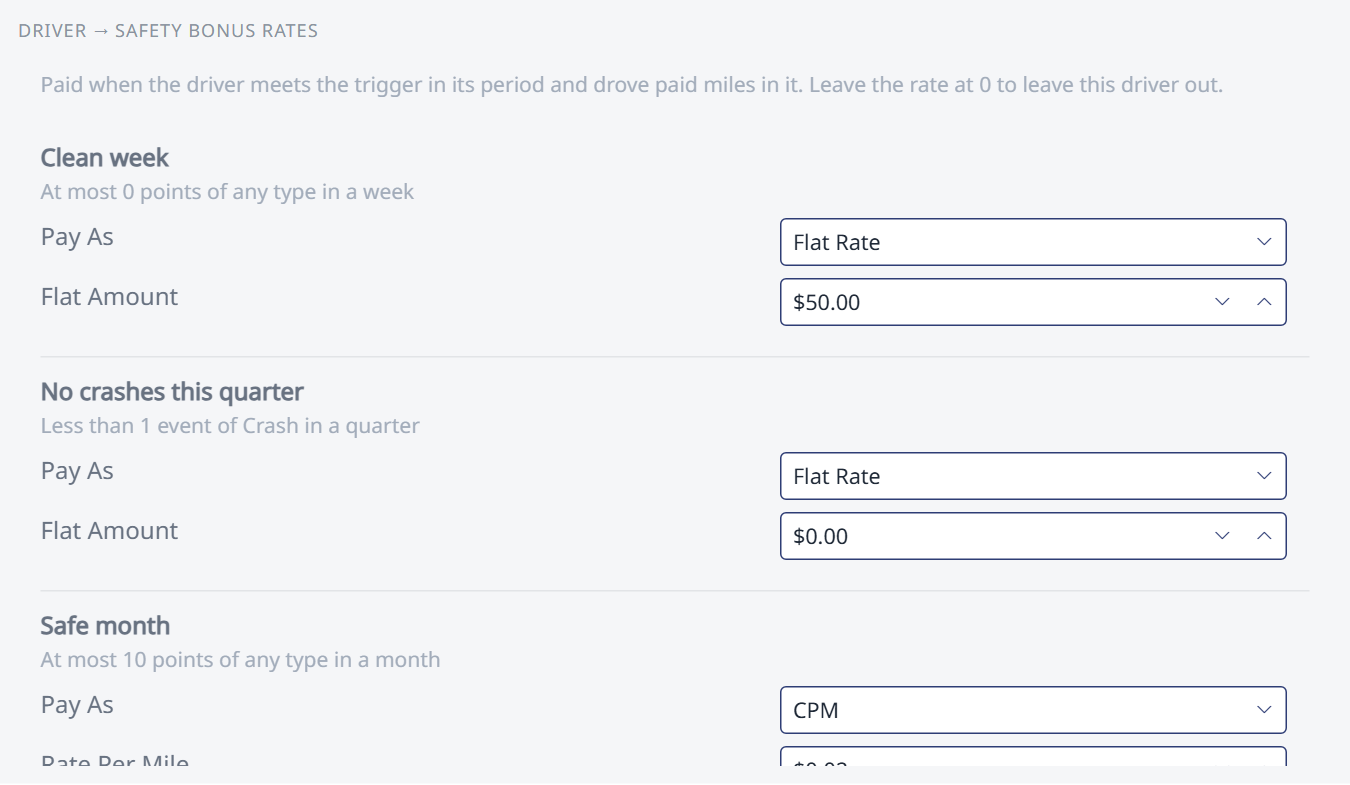 A driver's Safety Bonus Rates
A new sign-in page
We're upgrading how you sign in. When you open HaLDi, you'll see a page that lets you choose:
- Use the new login experience (recommended). It will offer more ways to sign in, such as passkeys. Your browser remembers this choice and takes you straight there next time.
- Use the legacy login experience, the sign-in you use today. This choice lasts until you close your browser, so you'll see the page again next time.
Your login is the same email address you use now, and nothing about your account or your data changes. The first time you use the new experience you'll set a password: use the Set my password link in the email we send you, or Forgot password? on the sign-in screen.
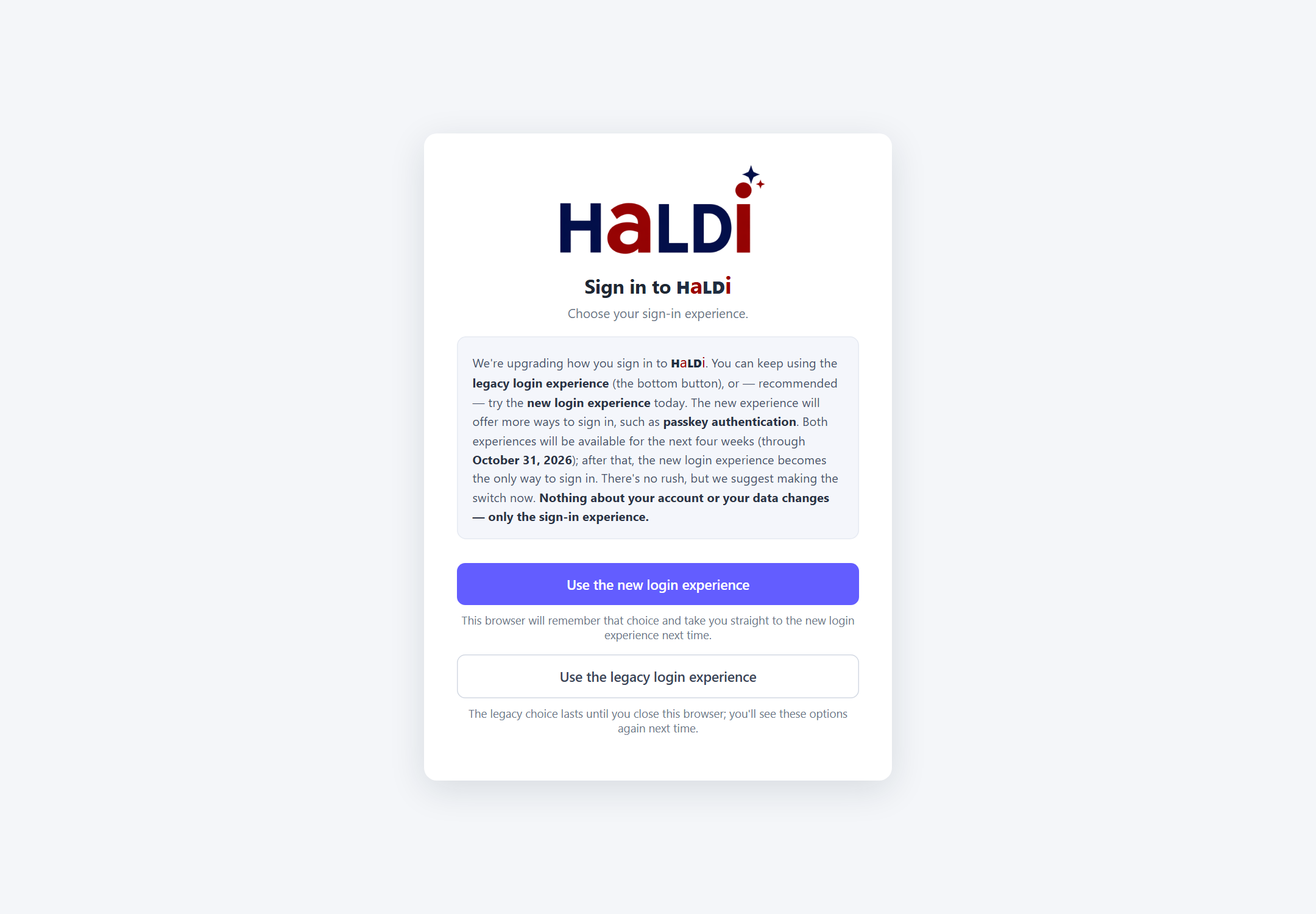 Choose your sign-in experience
Good to know
- Both experiences work until October 31, 2026. After that, the new one is the only way to sign in.
- After you sign out, the page appears again, so you can switch at any time.
Watch your settlement import
When you import a settlement, a progress page now shows each step as it happens: adding new destinations, drivers and trucks, comparing with last week, the analysis, looking for revenue issues, and refreshing your weekly summaries. It also finishes sooner; refreshing the weekly summaries used to take the longest.
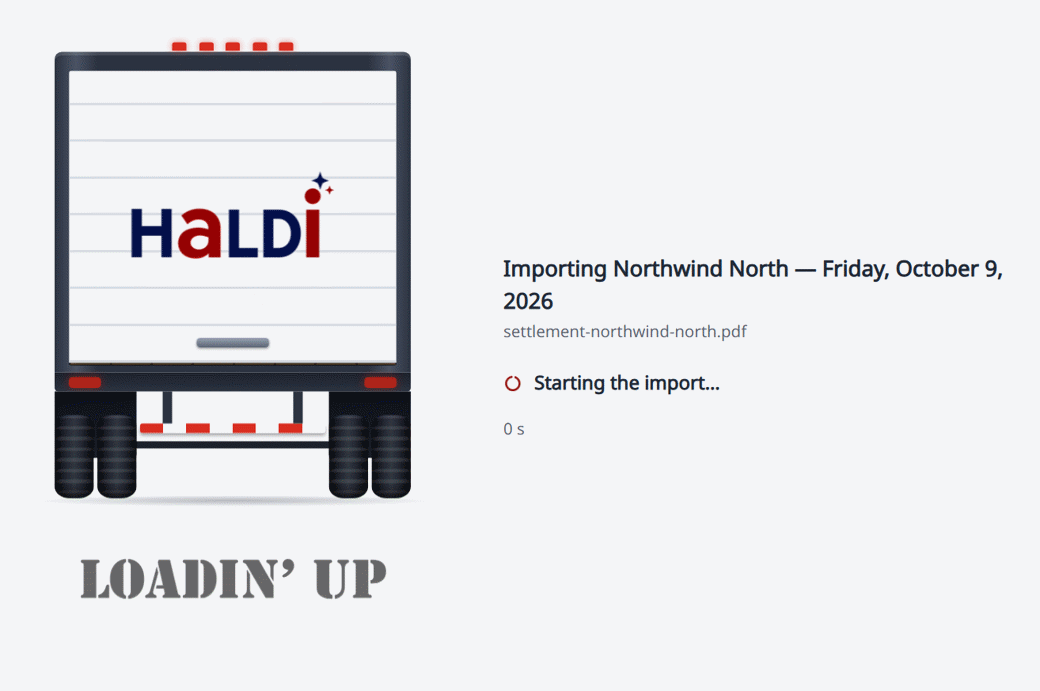 Importing a settlement
Broken legs, graded by confidence
Every broken leg now has a Confidence, and the most likely ones are listed first:
- Probable: the gap is still there when the truck's legs are put into run order.
- Possible: putting the legs into run order closes the gap, so it may just be out-of-order dispatch.
Broken legs are now found as soon as you import. You'll see the grades on the dashboard's Broken Legs widget, on the settlement's Issues tab, and in Revenue Finder → Revenue Issues.
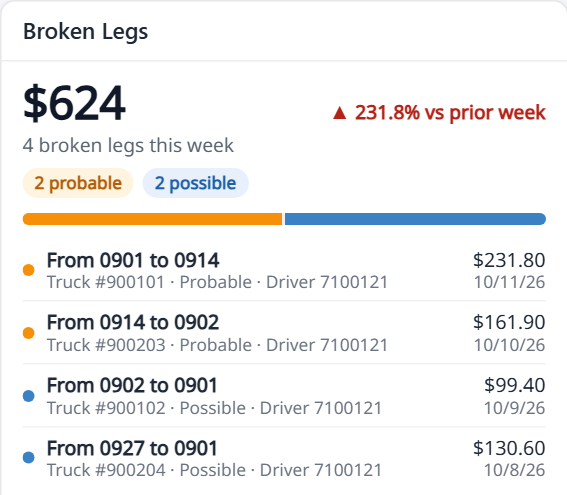 The Broken Legs widget splits the week's legs into probable and possible
Faster
- Hours of Service loads several times faster, even a month for a large fleet, and a progress window shows what it's doing.
- Settlement imports finish sooner.
- The dashboard loads each widget on its own, so the page appears right away.
- The driver app starts faster, and confirming or canceling a trip is quicker.
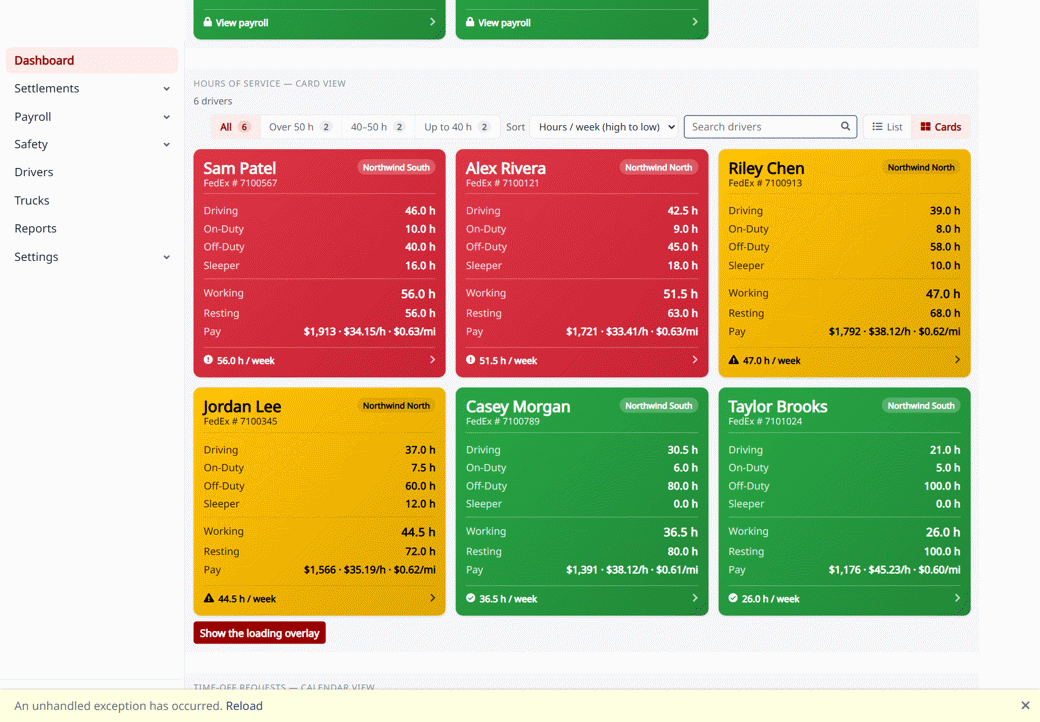 Hours of Service now shows its progress while it loads
Smaller improvements
- Email address boxes accept semicolons as well as commas between addresses.
- A new cancel reason, No Load Available, for trips and legs, both in dispatch and in the driver app.
- Excel, CSV and PDF exports from grids and reports now download on iPhone and iPad.
- Double-clicking a card no longer opens it twice, and double-clicking a schedule no longer duplicates its trips.
- Today's schedule no longer shows last night's overnight trips a second time.
- Trip Details keeps its title and the Cancel / Save buttons on one row.
- On a phone, dashboard widgets no longer cover the menu button.
- Pop-up messages have a cleaner look to match.
Need help?
Email support@halditech.com or call us at (470) 594-2534.