What's New in HaLDi: Late October 2026
Late October 2026 release for office users — trainee trips in payroll, a Fleet Map dashboard widget, default notes for maintenance, Revenue Issues as cards, and fewer false broken legs.
For office users · Late October 2026 release
This release adds trainee trips to payroll, a Fleet Map on the dashboard, default notes for maintenance, and a card view for revenue issues, plus fewer false broken legs and a handful of smaller improvements.
The screenshots use a made-up company, Northwind Freight, so the names and numbers are not real.
In this release
- Trainee trips: a trainee riding along no longer splits the trip as a team. Everyone is paid the full trip at solo rates.
- Fleet Map dashboard widget: every truck at its last ELD position, with the driver.
- Default notes for service requirements, filled in on service items and carried onto your MMRs.
- Revenue Issues as cards, colored by status.
- Revised broken leg detection that reports fewer false positives.
- Faster service visit entry and several smaller improvements.
Trainee trips
When a trainee rides with another driver, the trip is usually a solo run with an extra person on board, so it shouldn't be split as a team. Mark the driver as a trainee and HaLDi pays every driver on the trip all of the trip miles at their solo rate, with flat, drop & hook and percentage amounts paid in full rather than halved.
Step 1: mark the trainee
- Go to Drivers and open the driver.
- On the Details tab, check Trainee and save.
Step 2: payroll does the rest
- When the payroll is created from settlements, any trip with a trainee on it is paid as a trainee trip.
- In payroll review, Edit Trip shows a Trainee trip box. It's checked for you when a trainee is on the trip, and you can check or uncheck it yourself. On a trainee trip the drivers' miles don't have to add up to the trip miles.
- When the trainee graduates, uncheck Trainee on the driver. Payrolls you've already run keep paying those trips as trainee trips.
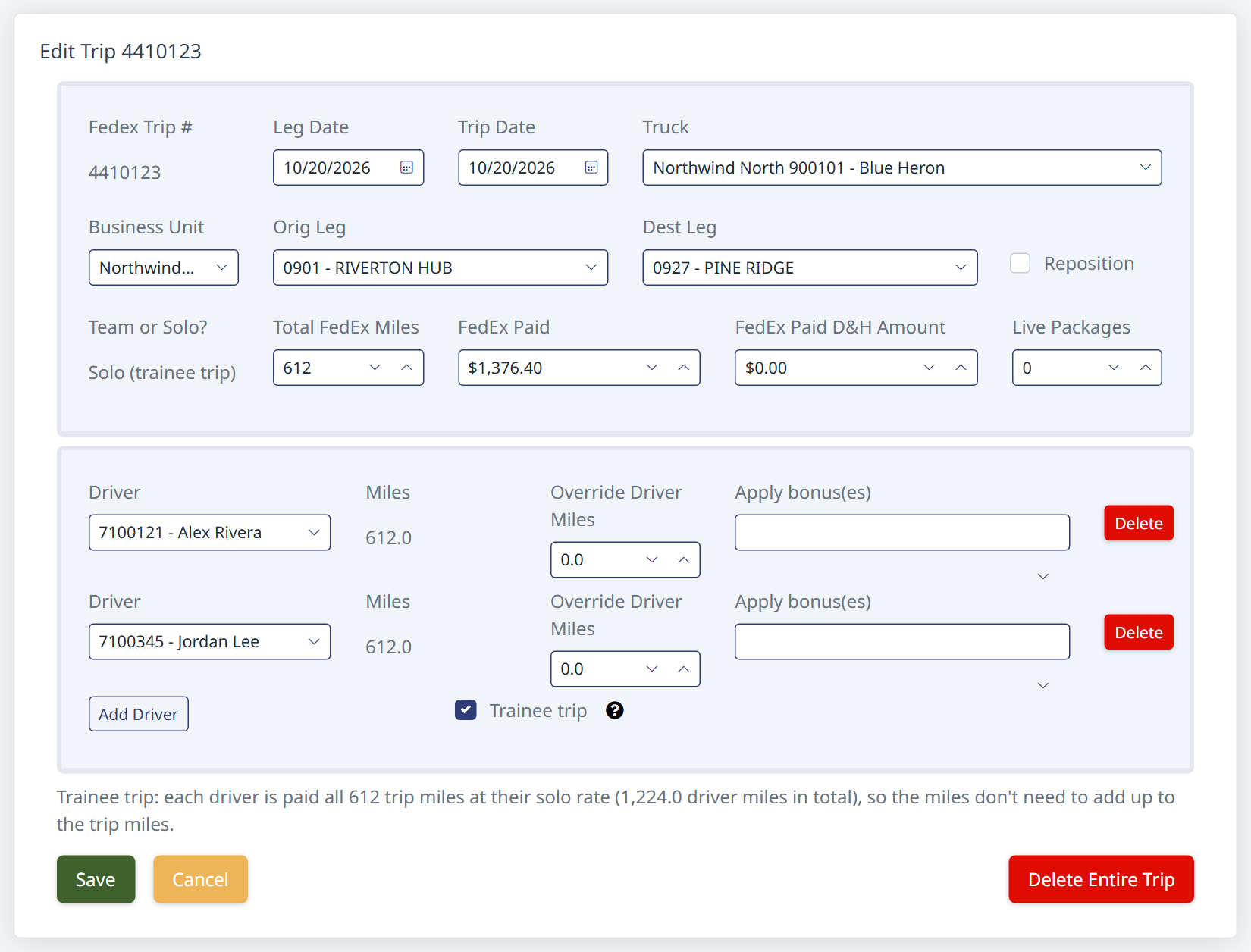 Edit Trip: both drivers are paid all 612 miles at their solo rate
Fleet Map
A new dashboard widget shows every truck at its last ELD position, so you can see where your fleet is at a glance.
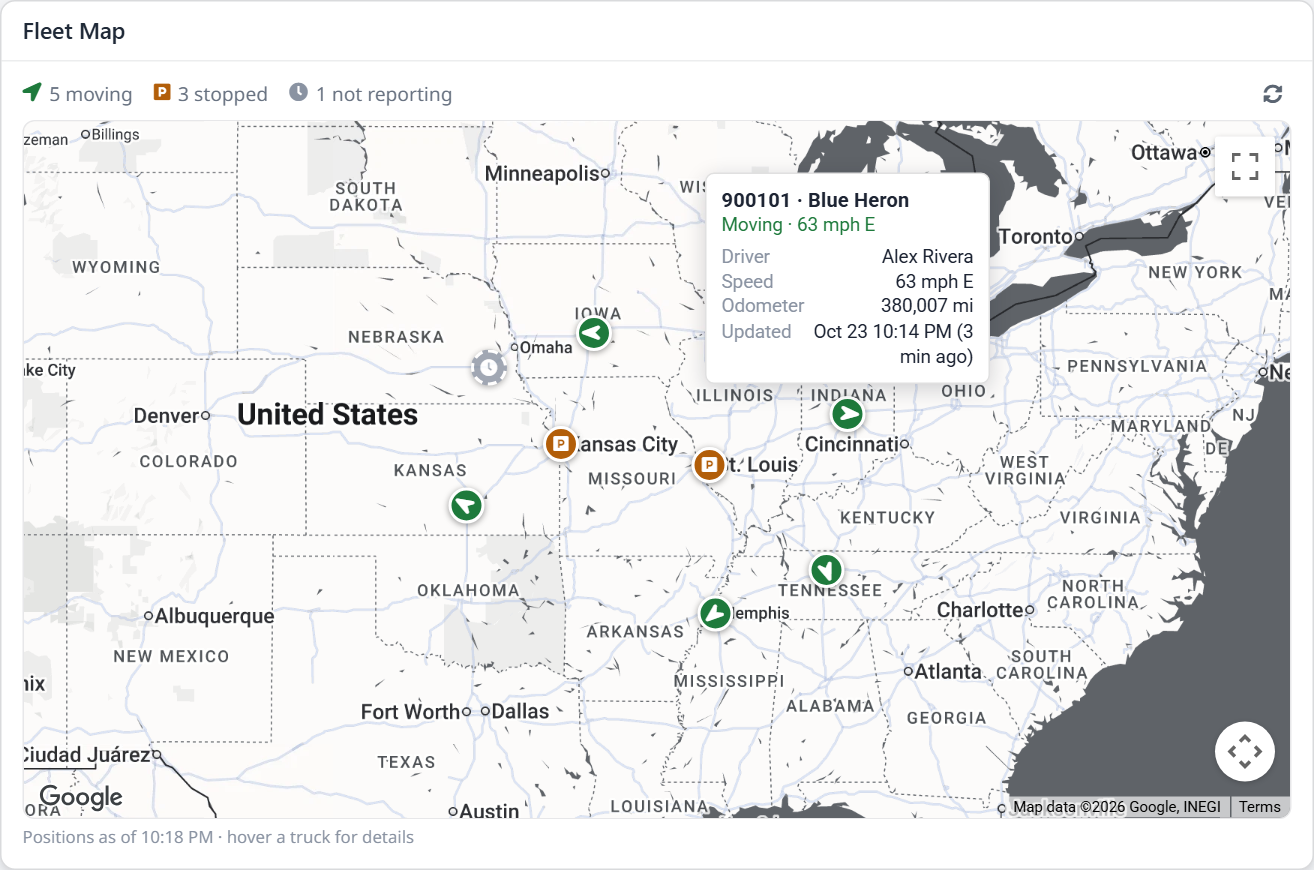 The Fleet Map widget, with one truck's details open
- Add it: click the gear (Customize dashboard), then Add widget → Schedule → Fleet Map. It needs the Professional subscription or higher and the Edit Schedules permission.
- Green arrow: moving (5 mph or more), pointing the way the truck is heading.
- Amber parking sign: stopped.
- Gray clock: no update in the last 24 hours, so the ELD may not be reporting.
- Hover over or tap a truck to see its driver, speed and direction, odometer, how long it has been stopped, and when it last reported.
- The counts at the top show how many trucks are moving, stopped and not reporting. Click the refresh button to update the positions.
Positions come from your Motive ELD connection. The driver shown is whoever was logged in to the ELD at the truck's last update.
Default notes for service requirements
Each service requirement can now have Default Notes: the work that's normally done for that service. For example, give Oil Change the default notes Drain/rpl Oil, Replace Oil Filter, Top Fluids.
- Go to Maintenance → Requirements and open the requirement (or add a new one).
- Type the notes into Default Notes and save.
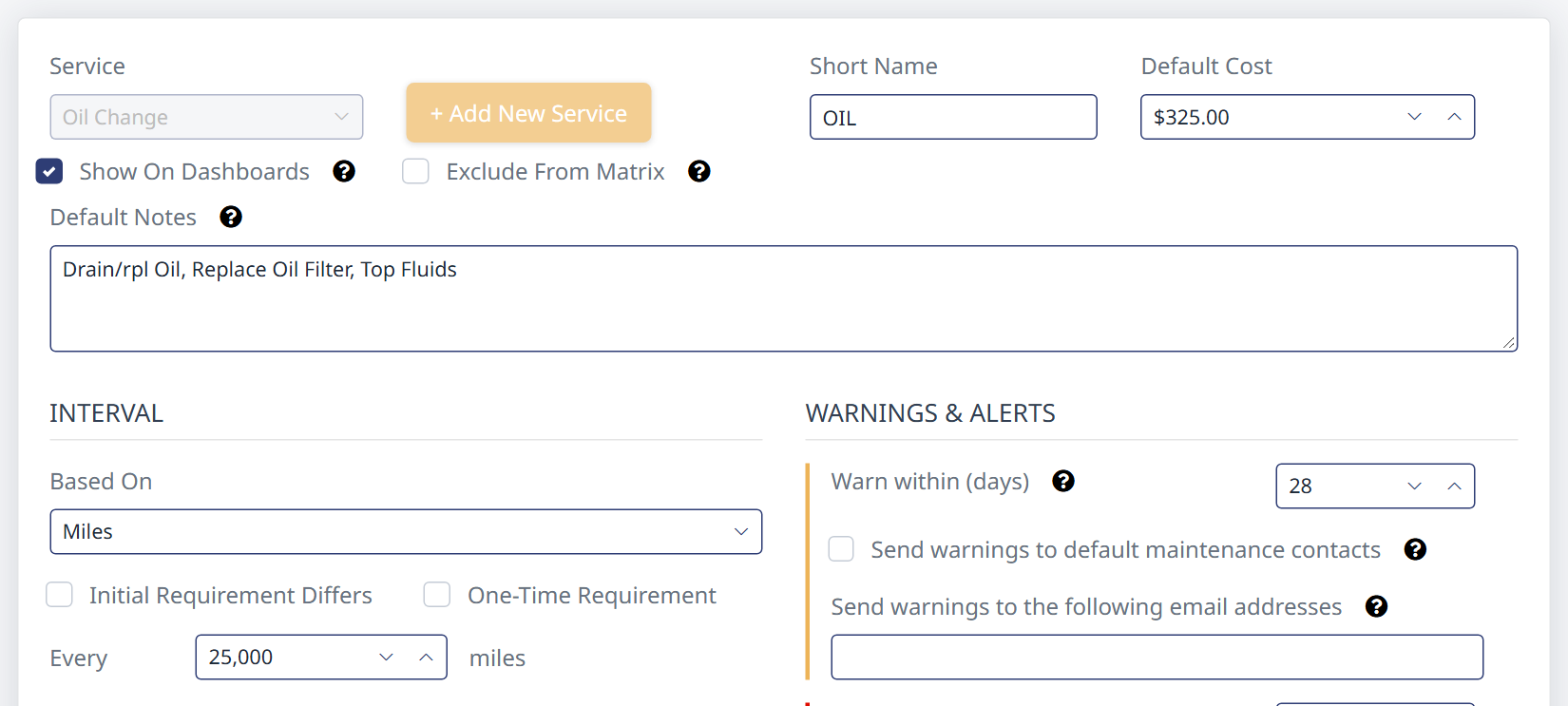 Maintenance → Requirements: Default Notes for Oil Change
Now when someone picks Oil Change on a service item, its Notes fill in with those default notes:
- The notes appear on your MMRs. A service item's notes are included on the MMR unless the item is marked Exclude from MMR.
- Edit the notes on the service item as needed. HaLDi never overwrites notes you've typed: picking a different service only replaces notes that are empty or still the previous service's defaults.
Faster service visit entry
- Adding from Service Items (list or cards) opens a Closed visit on the Visit tab, with one service item ready to fill in. Adding from the Defect Workflow still opens a Defect.
- New visits remember the truck, shop and mechanic from the last visit you saved, and the dates for as long as you stay on the page.
- Save & New saves the visit and goes straight to the next one, for entering a stack of invoices.
- + Add Service Item starts with the service type and mechanic from the item above it.
Revenue Issues as cards
In Revenue Finder → Revenue Issues, click Cards at the top right to see each issue as a card, colored by status: Open yellow, Submitted blue, Adjusted green and Closed gray.
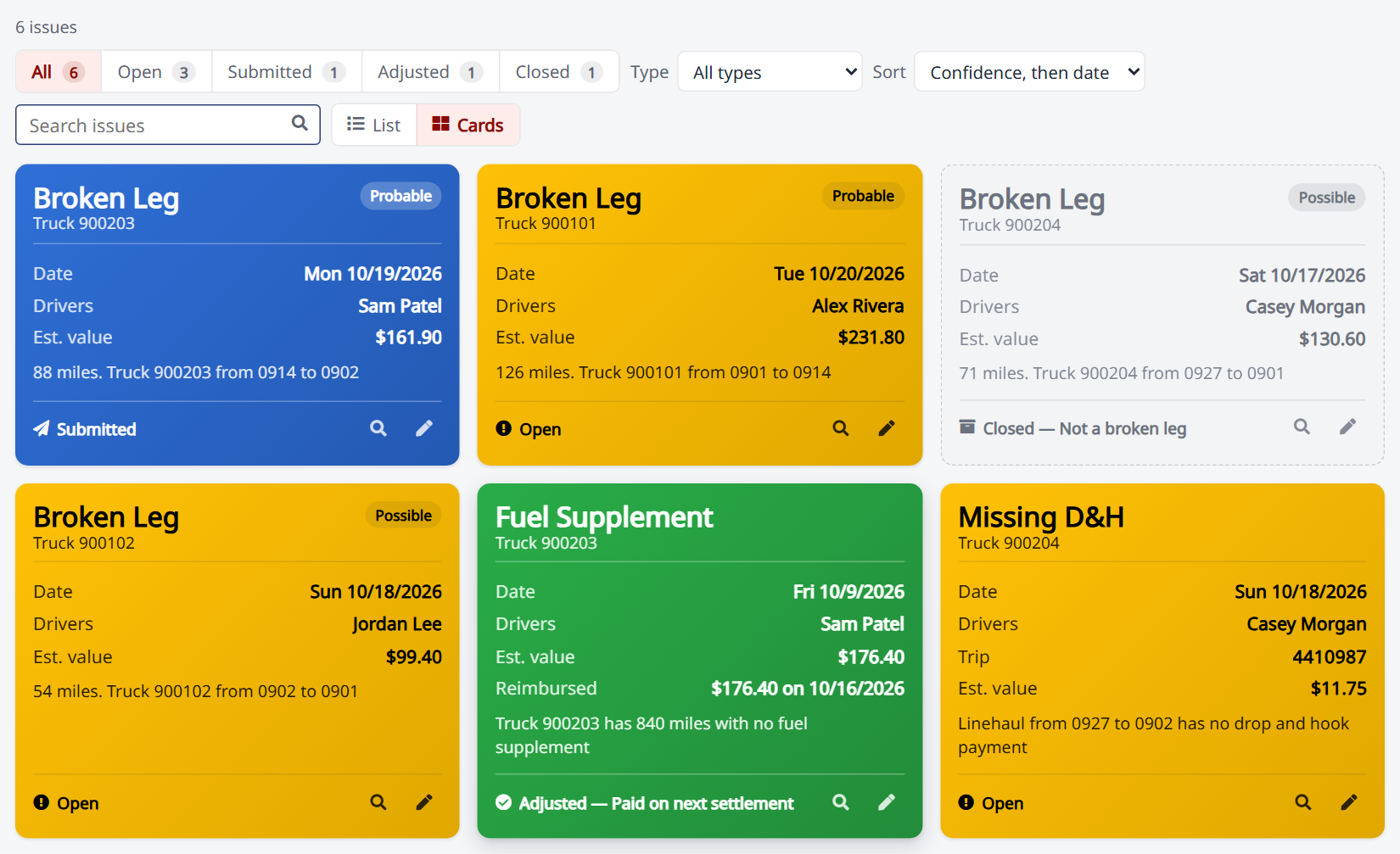 Revenue Issues as cards
- Use the status buttons (with counts), the Type filter, Sort and Search to narrow the list. Broken legs show their Probable or Possible confidence.
- Click a card or the magnifying glass to open the issue. The pencil edits it (Enterprise).
- The page remembers whether you last used the list or the cards.
Revised broken leg detection
Broken leg detection has been revised to reduce false positives. Trucks that run round trips out of a home terminal could be flagged with broken legs that weren't really there; those are no longer reported. A gap that only shows up when HaLDi puts a truck's legs into run order is now graded Possible rather than Probable, so the issues most worth chasing stay at the top of the list.
Smaller improvements
- The Settlements list remembers your columns, sorting and filters.
- Payroll review totals show just the amount, without the extra text.
- Time off: when you approve or deny a request, the driver now gets an email with the dates and, for a denial, the reason. It comes from your company's dispatch, and replies go to your dispatch reply-to address.
- Changing a driver's email now changes the email they sign in to the driver app with too. Their password stays the same.
- Weekly settlement summary emails are more reliable. HaLDi Executive Insights emails go to the addresses in Send Haldi Executive Summaries To (Message Settings).
- What's New: the badge counts only what you haven't read yet, and you can hide the button from your user menu (Hide What's New Button).
- Left HaLDi open overnight? Reloading the page now signs you back in instead of showing an error.
- Re-authorizing Motive is more reliable.
Need help?
Email support@halditech.com or call us at (470) 594-2534.